
Disclosure: This article may contain affiliate links. If you buy through one of these links, Upgrade or Skip may earn a commission at no extra cost to you. That does not change the verdict.
Welcome back to Upgrade or Skip. After testing whether Grammarly Pro is worth paying for and whether Canva Pro can justify $180 a year, the next question is what happens when the work moves from writing and design to video.
CapCut is the editor people recommend when someone wants to make a video without first earning a minor degree in timeline management.
Need automatic captions? CapCut. Need a Reel before lunch? CapCut. Need animated text, background removal, music, transitions, and three unnecessary zooms before the coffee gets cold? Also CapCut.
That convenience is real. So is the increasingly complicated paywall around it.
I tested CapCut on desktop and mobile using short-form clips, a longer YouTube-style project, automatic captions, background removal, templates, effects, transitions, AI tools, and high-resolution exports. I also checked CapCut’s current documentation and reviewed public user feedback to separate a smooth first edit from a subscription that still makes sense several projects later.
Quick Verdict
CapCut Pro is one of the best paid video editors for beginners who publish social video frequently. It is not the best beginner editor for everyone.
Upgrade if automatic captions, background removal, premium assets, and a faster mobile-to-desktop workflow save you time every week—especially if the videos support paid work or a revenue-generating channel.
Stay Free if you mainly cut clips, add basic text and music, and export occasional 1080p videos. CapCut Free remains capable enough to prove whether the workflow suits you before you pay.
Skip Pro if you want advanced color, audio, multicamera work, predictable long-term pricing, or a tool you can grow into without repeatedly meeting new subscription and credit boundaries. DaVinci Resolve has a steeper learning curve, but its free version offers far more professional depth.
Upgrade or Skip verdict: Stay Free first. Upgrade only after a real project proves that Pro saves repeatable time.
CapCut Pro at a Glance
| Category | Verdict |
|---|---|
| Best for | Frequent short-form creators and beginner social-video editors |
| Free plan | Strong enough for basic editing and testing the workflow |
| Pro pricing | US-facing reference: $19.99/month or $179.99/year; actual checkout price may vary |
| Free trial | Seven days for eligible new users in supported regions |
| Platforms | Windows, macOS, web, iOS, and Android |
| Standout tools | Automatic captions, background removal, templates, animated text, fast social exports |
| Main weakness | Moving paywalls, variable AI credits, and subscription/support complaints |
| Learning curve | Low for basic editing; moderate as timelines become more complex |
| Best alternative for depth | DaVinci Resolve |
| Overall verdict | Excellent for speed; less convincing for predictability |
Upgrade or Skip in 10 Seconds
- Upgrade: You publish several videos per week and Pro removes a repeated production bottleneck.
- Stay Free: You edit occasionally or still do not know which paid feature you would use every week.
- Skip Pro: You need professional editing depth, dislike variable subscriptions, or already pay for overlapping creative tools.
What Is CapCut Pro?
CapCut Pro is the paid tier of CapCut’s video-editing platform. It builds on the free editor with premium creative assets, advanced editing tools, higher-end export options, expanded cloud storage, and plan-dependent AI credits.
According to CapCut’s current Free vs Pro comparison, Pro may include:
- 4K and 60fps export
- Watermark-free exports where applicable
- Premium templates, effects, filters, transitions, fonts, and music
- Automatic caption and text tools
- Background removal
- Motion tracking
- Noise reduction
- AI-powered editing and generation features
- Expanded cloud storage
- Monthly subscription credits for certain AI tools
The word may matters. CapCut’s packages are not perfectly uniform across every account and platform. Its documentation says prices can vary by region, device, and promotion, while AI-credit allocations can differ between monthly, annual, and higher-tier subscriptions.
In other words, do not buy “CapCut Pro” as an abstract idea. Buy only the exact offer shown on your checkout screen.
What I Tested
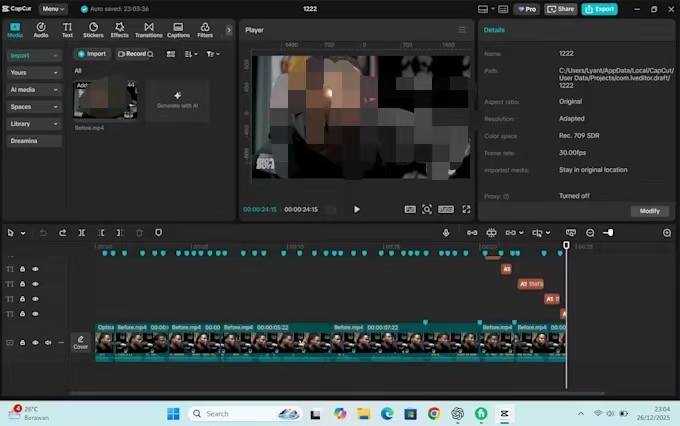
I used CapCut on both desktop and mobile and focused on the tasks a beginner is most likely to care about:
- Importing and organizing footage
- Cutting short-form and longer projects
- Generating and correcting automatic captions
- Applying text styles, effects, transitions, and templates
- Removing a background from talking-head footage
- Testing AI-assisted tools
- Adjusting audio and reducing noise
- Exporting at common social and YouTube settings
- Moving between mobile and desktop workflows
This was not a frame-by-frame laboratory benchmark. It was a practical test: how quickly can a beginner turn ordinary footage into a finished video, and which Pro features materially change that process?
I also checked current CapCut support pages and public feedback. User reviews are not proof that every customer will have the same experience, but repeated patterns around billing, support, credits, and locked exports are relevant when evaluating a subscription.
CapCut Free vs Pro
The free version is not merely a demo. It can handle basic cutting, timeline editing, text, audio, transitions, filters, and many common exports. For a new editor, that is enough to learn the interface and finish real projects.
Pro becomes meaningful when the same premium tools save time repeatedly.
| Feature | CapCut Free | CapCut Pro |
| Basic cutting and timeline editing | Yes | Yes |
| Basic text, effects, and transitions | Yes | Yes |
| Premium templates and assets | Limited | Expanded access |
| Automatic and advanced caption tools | Limited by feature, account, or region | Broader access |
| Background removal and advanced cleanup | Limited | Broader access |
| 4K/60fps and watermark controls | May be limited by platform or project | Included according to current Pro documentation |
| AI tools | Limited trials or uses may apply | Monthly credits may be included, depending on plan |
| Cloud storage | Limited | Expanded; allowance depends on the offer |
| Best fit | Occasional editing and workflow testing | Frequent production and paid work |
The dangerous way to compare the plans is to count locked features.
The useful way is to ask which locked feature stopped you from completing a real project efficiently.
If the answer is “none,” Pro has already failed its first sales test.
Why CapCut Is So Beginner-Friendly
CapCut usually names tools after the result a user wants.
Want captions? Choose automatic captions. Want the background gone? Choose background removal. Want a vertical canvas? Pick the social format. You do not need to understand nodes, compound clips, or color spaces before finishing a basic edit.
That makes the first few hours unusually productive.
On mobile, the record-edit-caption-export workflow is fast and direct. On desktop, the larger timeline makes it easier to manage longer footage, correct captions, adjust audio, and make precise cuts. The core logic remains familiar across both versions.
CapCut’s advantage is not that it can do everything. It is that beginners can find common tools before frustration convinces them to abandon the project.
CapCut Mobile vs Desktop
CapCut Mobile
Mobile is best for:
- TikTok videos, Reels, and Shorts
- Footage recorded on the same phone
- Fast templates and trending effects
- Simple talking-head clips
- Quick captions and immediate publishing
The entire workflow can happen on one device. That is difficult to beat for speed.
The limitation is space. Once a project contains several video layers, audio tracks, caption blocks, effects, and detailed timing changes, editing on a phone starts to feel like organizing a closet through the keyhole.
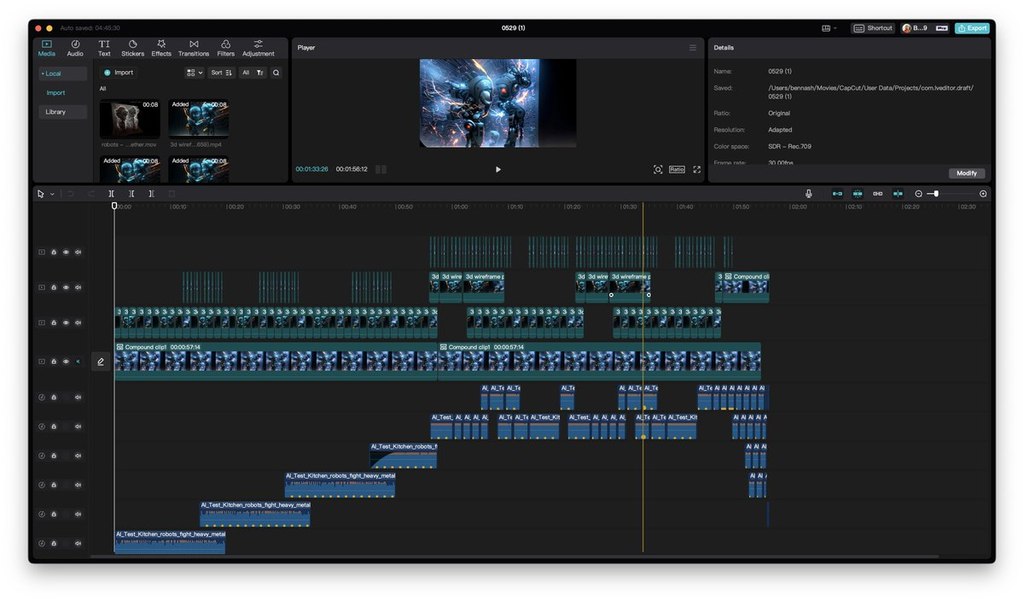
CapCut Desktop
Desktop is better for:
- Longer YouTube videos
- Larger amounts of footage
- Multi-layer timelines
- Precise cuts
- Detailed caption corrections
- Audio adjustments
- Repeated revisions
- Higher-resolution projects
For anyone planning to edit consistently, desktop is the more practical long-term workspace. Mobile remains the faster tool for simple social content.
The Features That Actually Matter
Automatic Captions
Automatic captions are one of CapCut’s strongest reasons to exist.
The workflow is quick: import a video, recognize speech, generate captions, correct the mistakes, apply a style, and export. Compared with manually typing and timing every sentence, the time saving can be substantial.
In my testing, the important word was still automatic, not finished. Names, technical terms, accents, background music, and unclear speech can produce errors. Every caption set needs proofreading.
For someone publishing talking-head videos or tutorials several times per week, this feature can help justify Pro. For one family video every three months, it is mostly a pleasant convenience.
Background Removal
Background removal can be useful for talking-head content, product clips, tutorials, and quick promotional videos when a green screen is unavailable.
It works best with clear separation between the subject and background. Hair, motion blur, shadows, low contrast, and soft edges can still expose rough cutouts. The tool can remove work; it does not remove the need to look at the result.
This is worth paying for when it replaces a repeated manual process. It is not worth paying for because it worked nicely in one test clip.
Templates, Effects, and Animated Text
CapCut’s creative library helps beginners solve a common problem: they know how to cut a video but not how to make it look finished.
Templates can provide pacing, music synchronization, text placement, transitions, and a recognizable social-media style. They are useful when turnaround matters more than originality.
They also create a sameness problem. Use enough popular templates and different creators’ videos can begin to look interchangeable.
Templates are scaffolding, not a personality.
AI Tools and Credits
CapCut offers AI-assisted editing and generation tools, but the subscription does not necessarily mean unlimited AI use. CapCut distinguishes between the Pro subscription and credits used by certain advanced AI features.
CapCut’s current credit documentation says different plans can receive different monthly credit allocations. Annual subscribers may receive more than monthly subscribers, while some regions may offer higher tiers. Purchased credits are separate from the Pro subscription.
That distinction should be visible before payment, not discovered after an AI experiment consumes the allowance.
This is also where a video editor can quietly become part of the AI subscription trap: one payment unlocks the editor, while another limit still controls how much AI work you can complete.
Treat AI tools as metered extras. Before subscribing, check:
- Which tools consume credits
- How many credits the selected plan includes
- Whether unused credits expire or roll over
- What happens when a generation fails
- How much additional credits cost
Do not calculate value based on the phrase “AI tools included.” Calculate it using the actual allowance shown for your account.
4K and 60fps Export
CapCut lists 4K/60fps export among its Pro benefits. That can matter for YouTube, client work, product footage, and higher-quality masters.
It does not make poor footage better. Upscaling a soft, compressed 1080p clip into a 4K file increases its dimensions and file size without restoring detail that was never captured.
For most casual short-form content, 1080p is still sufficient. Pay for higher export settings only when your source footage, platform, or client delivery actually requires them.
The Moving Paywall Problem
The biggest concern is not that CapCut charges for software. Developers are allowed to enjoy groceries.
The concern is predictability.
CapCut officially acknowledges that a project containing a premium template, effect, font, music track, sticker, transition, LUT, AI tool, or other Pro element can trigger a subscription prompt during export. Users can preview some premium materials before discovering that clean export requires Pro.
That creates a particularly irritating buying moment: the project is already finished, the deadline is close, and the upgrade button is standing between the user and the file.
Before committing hours to an important edit, inspect every asset for a Pro label. Then make a short test export. Do this before the final deadline, not while a client is asking where the video is.
CapCut Pro Pricing: Check the Checkout, Not an Old Review
CapCut’s current US-facing comparison page lists individual Pro at approximately $19.99 per month or $179.99 per year. These are useful reference prices, not a guarantee for every account. CapCut says the amount shown at checkout can vary by:
- Country and currency
- Web, desktop, iOS, or Android purchase channel
- Monthly or annual billing
- New or existing subscriber status
- Promotions and regional offers
- Available Pro, Pro+, or team tiers
- Included AI credits and cloud storage
- Taxes
That means the current US reference price can still be wrong for the next reader’s region, device, or account.
Before subscribing, open the purchase page for the account and platform you will actually use. Confirm:
- The amount charged today
- The automatic renewal price
- The billing interval
- Trial eligibility and end date
- Included AI credits
- Cloud-storage allowance
- The cancellation method
- Applicable taxes
Check the current CapCut Pro offer for your account
The Purchase Math
Because CapCut pricing varies, use your own checkout amount. The examples below use the current US-facing annual reference price of $179.99.
Annual subscription cost ÷ number of videos completed per year = software cost per finished video.
At $179.99 per year:
- 4 videos per year = about $45 per video
- 12 videos per year = about $15 per video
- 52 videos per year = about $3.46 per video
- 156 videos per year = about $1.15 per video
The price becomes easier to justify when production is frequent. But frequency alone is not enough. Pro should either save time, improve output, replace another paid tool, or help complete revenue-related work.
Use a second calculation:
Minutes saved per video × videos per month = monthly time recovered.
If captions, background removal, and saved styles remove 20 minutes from 12 monthly videos, Pro returns four hours. That can be valuable.
If you make only two videos a year, the cost per finished video is about $90 before tax. At that frequency, the free plan is usually the more rational choice.
What Users Like—and What They Keep Complaining About
Positive feedback commonly centers on:
- Fast short-form editing
- A low learning curve
- Convenient captions and text tools
- Useful templates and effects
- Easy mobile editing
- A smoother path from raw footage to social-ready video
The negative side is harder to dismiss.
When checked on August 22, 2026, CapCut had a 1.2/5 TrustScore from 1,244 reviews on Trustpilot, with 89% rated one star. Trustpilot also notes that the company has not invited reviews, so the sample may not represent all CapCut users. It should not be treated as a scientific product score.
It is still a serious warning signal. Recurring complaints include:
- Unexpected charges or confusing renewals
- Difficulty canceling or resolving account issues
- Slow or ineffective customer support
- Features or materials moving behind paid access
- Paid accounts not receiving expected benefits
- AI credits being consumed by failed or disappointing results
- Bugs, crashes, slow processing, or failed exports
These reviews do not prove that every subscriber will have trouble. They do show why beginners should avoid paying before verifying the exact offer, cancellation route, and export workflow.
Read current CapCut customer reviews on Trustpilot
CapCut Pro Pros and Cons
Pros
- One of the easiest editors for beginners to understand
- Excellent for Shorts, Reels, TikTok, and talking-head videos
- Fast automatic-caption workflow
- Useful mobile and desktop apps
- Accessible background removal and social-focused tools
- Large library of templates, text styles, effects, and transitions
- Capable of straightforward long-form YouTube projects
- Removes many technical decisions from routine editing
Cons
- Pricing is inconsistent across accounts, regions, and platforms
- AI credits and storage can vary by plan
- Premium elements may block the expected export
- The boundary between free and paid features can change
- Serious public complaints about billing and customer support
- AI tasks can consume metered credits without guaranteeing a useful result
- Templates can make videos look generic
- Advanced color, audio, multicamera, and project-management workflows are limited
- Frequent creators may eventually outgrow it
CapCut Pro Alternatives
DaVinci Resolve
Choose DaVinci Resolve if you want professional editing depth, advanced color tools, stronger audio work, and more room to grow. The free version is unusually powerful.
The cost is complexity. Resolve is not the editor most people master between breakfast and their first upload.
Adobe Premiere Pro
Premiere Pro makes more sense for professional editors, client workflows, plugins, collaboration, and integration with other Adobe applications. It is more capable, more complicated, and usually more expensive.
Filmora
Filmora sits between CapCut and professional editors. It remains approachable while offering a more traditional desktop-editing workflow. Compare its current subscription, perpetual-license terms, export restrictions, and AI credits carefully.
Canva
Canva Pro is useful when video is one part of a broader content workflow involving thumbnails, presentations, social graphics, and brand assets. Its timeline is simpler and less suitable for detailed editing, but it may prevent another subscription for creators already paying for it.
Stay With CapCut Free
The most obvious alternative is not another purchase. It is using CapCut Free until a specific limitation repeatedly costs time.
Free is not the waiting room. For many occasional creators, it is the correct plan.
Upgrade If
- You publish Shorts, Reels, TikToks, tutorials, or talking-head videos several times per week.
- Automatic captions save meaningful time on every project.
- You repeatedly use background removal, premium text, or other paid tools.
- Your videos support client work, sales, or a revenue-generating channel.
- You need a fast workflow across mobile and desktop.
- Pro replaces another caption, background-removal, or creative-asset subscription.
- You have tested a complete project and exported it successfully.
- You have confirmed the renewal price, credit allowance, storage, and cancellation method.
Stay Free If
- You edit occasional personal or social videos.
- Basic cuts, text, music, transitions, and 1080p exports cover your needs.
- You are still learning which tools matter to your workflow.
- You publish inconsistently.
- You mainly want to experiment with templates.
- You cannot name one Pro feature that would save time every week.
Skip Pro If
- You want advanced color grading, audio mixing, multicamera editing, or motion graphics.
- You are building a complex long-form or team-production workflow.
- Predictable pricing and stable feature boundaries are essential.
- You already pay for another editor or creative suite with overlapping tools.
- You rely heavily on AI generation but have not calculated the credit cost.
- Your collection of creative subscriptions is already creating more tool management than useful output.
- You are upgrading only because one finished project accidentally contains a Pro asset.
- The checkout page does not clearly explain renewal, credits, storage, or cancellation.
The CapCut Pro Upgrade Test
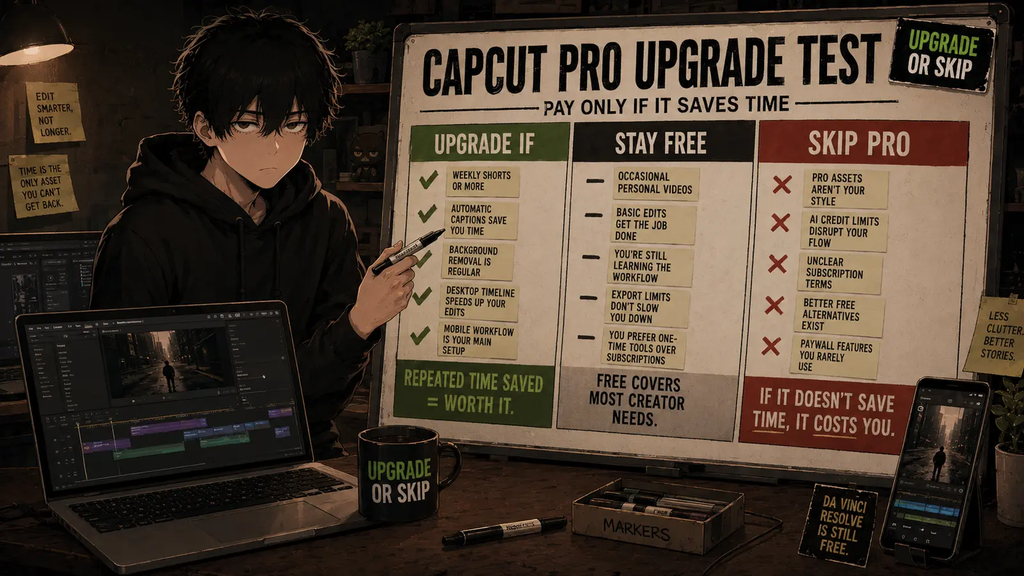
Use CapCut Free—or the seven-day Pro trial if your account is eligible—to complete three real projects.
Track four things:
- Which Pro tools did you use more than once?
- How many minutes did they save?
- Did the finished videos support income, clients, or consistent publishing?
- Could a free tool or existing subscription do the same job?
Upgrade only if the same paid feature solves the same problem repeatedly.
Do not subscribe because CapCut contains hundreds of premium effects. Subscribe because three of them reliably save your Tuesday.
Final Verdict: Is CapCut Pro the Best Video Editor for Beginners?
For frequent short-form creators, CapCut Pro is one of the best beginner video editors in 2026. For occasional editors and people who want professional depth, it is not.
CapCut wins on immediate productivity. A beginner can import footage, create captions, add polished text, remove a background, and export a social-ready video without learning an entire production vocabulary first.
That speed is valuable. It is also the product’s strongest sales argument.
The subscription becomes harder to recommend when pricing, AI credits, premium boundaries, and support feel unpredictable. The extremely poor Trustpilot profile does not erase CapCut’s editing strengths, but it makes blind annual commitment difficult to defend.
Start with Free. Finish real videos. Identify the exact bottleneck. If Pro repeatedly removes it—and the checkout terms are clear—upgrade.
If Free already gets the video published, stay free.
If you want to build deeper editing skills, skip Pro and invest the learning time in DaVinci Resolve or another more capable editor.
Final verdict: Stay Free for casual use. Upgrade for frequent, time-sensitive social production. Skip Pro for advanced workflows or subscription predictability.
Check the current CapCut Pro price and trial eligibility
FAQ
Is CapCut Pro worth it for beginners?
It can be, especially for beginners publishing multiple social videos each week. Automatic captions, background removal, premium text, templates, and simplified exports can remove a meaningful amount of repetitive work. Beginners editing occasionally should stay with the free version.
Is CapCut Free good enough for YouTube?
Yes, for basic talking-head videos, commentary, tutorials, screen recordings, B-roll, music, text, and straightforward exports. More complex color, audio, multicamera, effects, and asset-management workflows are better handled by a professional editor.
How much does CapCut Pro cost in 2026?
There is no single price that applies to every reader. CapCut says pricing varies by region, platform, account, billing period, and promotion. Check the web and app checkout screens, then verify the renewal price and taxes before subscribing.
Does CapCut Pro include unlimited AI tools?
No. Certain AI features use credits, and monthly allowances can differ by plan and billing frequency. Check the credit balance and plan terms shown in CapCut Web before paying.
Can CapCut Pro edit long YouTube videos?
Yes. CapCut Desktop can handle straightforward long-form projects. It becomes less suitable as timelines require advanced color grading, audio mixing, multicamera editing, proxy workflows, plugins, or team collaboration.
Is CapCut easier than DaVinci Resolve?
For a beginner making a first social video, generally yes. CapCut exposes common tasks more clearly and requires less technical knowledge. DaVinci Resolve is harder to learn but provides far more professional depth and long-term growth.
Can a Pro asset stop a CapCut export?
Yes. CapCut’s official documentation says projects containing premium assets or features may trigger a Pro prompt during export. Check labels and make a short test export before committing hours to an important project.
Is the CapCut Pro free trial available to everyone?
No. CapCut offers a seven-day trial only to eligible new users in supported countries and regions. Availability depends on the account, location, and app version.
Prices, plan names, AI credits, storage allowances, trials, features, and offers can change. Check the current checkout terms before subscribing.
Check Current CapCut Pro Pricing
Next Up
Filmora Review: Is It Better Than CapCut for Beginners?
Upgrade smarter. Skip louder.