Disclosure: This post may contain affiliate links. If you buy through them, we may earn a small commission at no extra cost to you.
Welcome back to Upgrade or Skip.
In the last post, we talked about how long a gaming PC should actually last.
The answer was not:
“Until the internet gets bored.”
It was:
“Until it stops doing the job you need it to do.”
Now we need to talk about one of the biggest upgrade mistakes people make:
Your PC feels slow.
So you assume the hardware is finished.
Maybe it is.
Maybe it is not.
And that difference can save you hundreds of dollars.
Because in 2026, PC parts are not exactly giving off “cheap impulse purchase” energy.
RAM prices are weird.
SSD prices are weird.
GPU prices remain emotionally complicated.
So before opening a shopping tab and convincing yourself that a slow desktop animation means you need a new CPU, ask a better question:
Is your PC actually underpowered, or is it just carrying too much unnecessary weight?
Because those are different problems.
One requires new hardware.
The other requires cleanup.
And cleanup is not nearly as exciting as buying something new.
Which is probably why the internet talks about it less.
Very convenient.
Very suspicious.
“My PC Is Slow” Is Not A Diagnosis
Across Reddit tech support threads, PC forums, YouTube comments, and Windows discussions, the same question appears constantly:
“My PC has decent specs, but it feels slow.”
“Games used to run fine, but now everything stutters.”
“Windows feels sluggish even though my hardware is not that old.”
“Do I need more RAM?”
“Should I upgrade my CPU?”
“Why does Chrome eat my soul?”
That last one may not be the exact wording.
But spiritually?
Yes.
The problem is that “slow” can mean almost anything.
Slow boot times.
Slow app launches.
Slow loading.
Low FPS.
Stutters.
Input delay.
Loud fans.
Random freezing.
A browser session with 47 tabs that has somehow become a permanent lifestyle choice.
Those are not all the same problem.
And if you do not know which type of “slow” you have, you can easily buy the wrong solution.
That is how people end up buying:
- A new GPU when the real problem was storage.
- More RAM when the problem was background software.
- A completely new PC when Windows just needed fewer things launching at startup.
Congratulations.
You bought horsepower for a traffic jam.
Startup Apps Are The Silent Performance Tax
One of the easiest ways to make a good PC feel old:
Let every application start with Windows.
Game launchers.
Cloud sync apps.
Chat apps.
RGB software.
Peripheral tools.
Update managers.
Printer utilities you forgot existed.
Something called “Helper” that is helping nobody.
By the time Windows finishes loading, your PC is not starting fresh.
It is hosting a small business conference.
This is why checking startup applications is one of the easiest first steps.
It is boring.
It is also real.
If your PC feels slow immediately after booting, open Task Manager before blaming your CPU.
You may not need faster hardware.
You may just need fewer programs asking for attention before breakfast.
Browser Tabs Are Not Free
Browsers are amazing.
They are also where RAM goes to become folklore.
Modern browsers are not just browsers anymore.
They are:
- Document editors
- Video players
- Messaging hubs
- Shopping carts
- Dashboards
- Research tools
- Accidental operating systems wearing a search bar
Then you add extensions.
Ad blockers.
Coupon tools.
Password tools.
Screen capture tools.
Translation tools.
Random extension you installed three years ago because a website asked nicely.
Some extensions are useful.
Some are privacy nightmares.
Some just sit there eating resources like they pay rent.
If your PC feels slow during normal use, check your browser before buying new hardware.
Not because browsers are evil.
Because they are often the thing you actually use all day.
If your “slow PC” only feels slow when you have:
- 47 tabs
- Three web apps
- Two videos
- Discord
- A game launcher
open…
your hardware may not be failing.
It may simply be witnessing your lifestyle.
RAM Can Be The Problem, But Check First
RAM is one of the most misunderstood upgrade fixes.
Sometimes more RAM helps a lot.
Sometimes it does absolutely nothing because RAM was not the bottleneck.
Very annoying.
Very factual.
If your RAM is constantly maxed out, your PC may start using slower storage as backup memory.
That can make everything feel worse:
- App switching
- Browser tabs
- Game stutter
- Loading
- Multitasking
- General responsiveness
This is why 32GB has started to feel more comfortable for many PC users, especially if they game while keeping other apps open.
But do not buy RAM because a comment section declared:
“16GB dead.”
Open Task Manager.
Check memory usage.
Look at what is actually consuming it.
If you are regularly near the limit during real use, more RAM can be a smart upgrade.
If you are not, more RAM will not spiritually bless your FPS.
That is not how memory works.
A Full SSD Can Make A Good PC Feel Bad
Storage is another quiet problem.
People usually notice storage only when Windows starts begging for space like a landlord with a warning letter.
But a nearly full SSD can make a PC feel worse.
Games are huge.
Updates are huge.
Recordings are huge.
Screenshots multiply.
Launchers cache things.
Windows stores things.
You download files into folders you treat like archaeological layers.
Then one day your SSD has 12GB free and a dream.
If your PC feels sluggish, check storage before buying a new processor.
Free space matters.
Drive health matters.
Game location matters.
If you are still running games from an old hard drive, that can also explain loading pain.
An SSD upgrade will not turn a weak GPU into a monster.
But it can make an annoying PC feel normal again.
And sometimes:
“Normal again”
is the upgrade you actually needed.
Heat Can Pretend To Be Age
A PC that runs hot can feel old.
Not because the parts forgot how to compute.
Because they are protecting themselves.
Thermal throttling is what happens when hardware slows down to avoid overheating.
That can cause:
- Lower performance
- Louder fans
- Inconsistent clock speeds
- Random slowdowns
- General misery
Common causes:
- Dust
- Poor airflow
- Old thermal paste
- Bad fan curves
- Blocked vents
- A case shoved into a corner with no breathing room
This is why cleaning a PC can sometimes feel like a small upgrade.
Not because dust is magical.
Because heat is real.
If your PC feels slower after years of use, check temperatures.
If the fans are screaming, the case is dusty, and the CPU is doing yoga at 95°C, maybe do not start with a new GPU.
Start with air.
Very advanced technology.
Surprisingly affordable.
Drivers And Updates Can Make Things Weird
Drivers can fix problems.
Drivers can also create problems.
Windows updates can improve performance.
Windows updates can also make you question reality for an afternoon.
This is why:
“Update everything”
is not always the perfect answer.
But outdated drivers, broken installs, missing chipset drivers, and old BIOS issues can absolutely make a PC feel worse than it should.
Before upgrading hardware, check the basics:
- GPU driver
- Chipset driver
- Windows updates
- Storage health
- BIOS only if there is a reason
- Game updates
- Background overlays
Also check whether the problem is one game or every game.
One badly optimized game is not a full system diagnosis.
It is one badly optimized game.
PC gaming contains many of those.
We survive somehow.
Background Software Is Where Performance Goes To Hide
Modern PCs run a lot of background software.
Some of it is useful.
Some of it is not.
Some of it is there because a mouse needed 600MB of software to change a light.
Very normal industry.
Very healthy.
Common background suspects:
- RGB control apps
- Overlay tools
- Game launchers
- Cloud sync
- Updaters
- Screen recorders
- Hardware monitoring tools
- Antivirus scans
- Browser background processes
- “Optimization” software doing the opposite of its job title
If your PC feels slow, check Task Manager before assuming the CPU is obsolete.
Look at:
- CPU usage
- Memory
- Disk usage
- Startup apps
Look at what runs when you are doing nothing.
A good PC should not be working hard while idle unless it has a reason.
If it is, find the reason.
Then decide whether hardware is the problem.
Not before.
Malware And Sketchy Cleaners
Here is the awkward one.
Sometimes a slow PC is not old.
It may be infected.
Or it may be overloaded with:
- “Cleaner” tools
- Driver boosters
- Fake optimizers
- Coupon extensions
- Browser hijackers
- Sketchy software that promises speed while stealing it
Do not install random PC speed-up tools because a website with six download buttons told you to.
Use built-in Windows tools first.
Use reputable security tools.
Remove suspicious programs.
Check browser extensions.
Run a malware scan if behavior looks weird.
A slow PC does not always need a new part.
Sometimes it needs fewer terrible decisions installed on it.
Again, no judgment.
The internet is full of traps wearing blue download buttons.
When New Hardware Actually Makes Sense
This article is not saying never upgrade.
That would be silly.
Sometimes a slow PC really is hardware-limited.
Upgrade becomes more reasonable when:
- RAM is consistently maxed out during real use.
- The SSD is too small or too slow for your workload.
- The CPU is clearly limiting games or apps you use.
- The GPU cannot meet your performance target.
- The PC is thermally fine but still underperforms.
- You have tested the obvious software causes.
- The same problem appears across multiple workloads.
The key is diagnosis.
Not vibes.
Do not upgrade because the PC:
“feels old”
once.
Upgrade because you can identify what is failing and why a new part fixes it.
That is the difference between a smart upgrade and an expensive ritual.
Quick Reality Check Before You Buy Anything
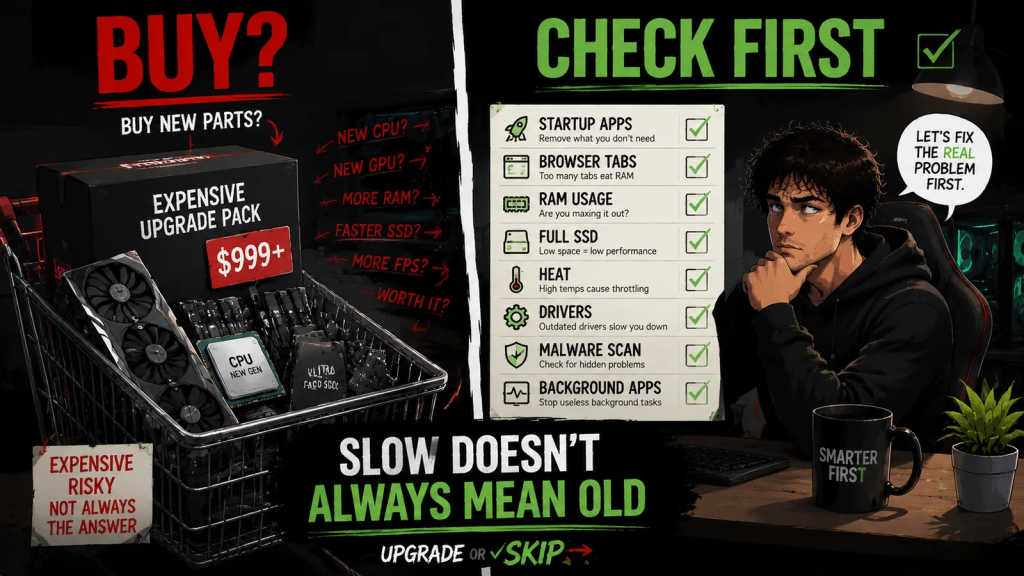
Before buying new hardware, do this:
1. Restart the PC
Yes.
Actually restart it.
Not sleep mode.
Not “I have not restarted since last Tuesday.”
A restart fixes more weirdness than people want to admit.
2. Check Task Manager
Look at:
- CPU usage
- RAM usage
- Disk usage
- Background processes
Find what is actually using resources.
3. Disable Unnecessary Startup Apps
Your PC does not need every application to wake up with Windows.
Some of them can wait.
4. Free Up SSD Space
Keep enough free space for normal operation.
A completely full drive is not a performance strategy.
5. Check Temperatures
Before blaming hardware, check whether the hardware is overheating.
6. Update Drivers If Needed
Especially:
- GPU
- Chipset
- Important system components
7. Remove Unused Programs
If you have not opened something in years, it probably does not need to launch every day.
8. Review Browser Extensions
Your browser may be carrying more baggage than your PC.
9. Scan For Malware
If something feels unusual, check.
10. Test The Problem Again
After fixing the obvious issues, see if the problem actually remains.
This is not exciting.
But it is cheaper than buying a part you did not need.
And if the problem remains?
Good.
Now you have evidence.
Evidence is better than panic.
Panic is how people buy a CPU to fix a full SSD.
Upgrade If:
- Your RAM is regularly full during real use.
- Your SSD is too small, too full, or too slow.
- Your temperatures are fine but performance is still consistently poor.
- Your CPU or GPU bottleneck is clear and repeated.
- Your workload has genuinely become heavier.
- You have already cleaned up Windows, startup apps, storage, drivers, and background software.
- The upgrade solves a specific problem you can clearly name.
Skip If:
- Your PC only feels slow because too many apps launch at startup.
- Your SSD is nearly full.
- Browser tabs and extensions are eating memory.
- Dust and heat are causing throttling.
- One badly optimized game is creating the panic.
- You have not checked Task Manager yet.
- You cannot explain what hardware upgrade would actually fix.
The Upgrade or Skip Take
A slow PC is not automatically an obsolete PC.
Sometimes it is old hardware.
Sometimes it is Windows clutter.
Sometimes it is startup apps.
Sometimes it is RAM pressure.
Sometimes it is a full SSD.
Sometimes it is heat.
Sometimes it is Chrome with enough tabs open to qualify as a second operating system.
Before buying new hardware, diagnose the slowdown.
Because in 2026, with PC parts still expensive and memory and storage prices acting suspicious, guessing is not a strategy.
If your PC needs an upgrade, upgrade.
If it needs cleanup, skip the shopping cart.
Your wallet deserves evidence.
Next up:
The Real Lifespan of a GPU in 2026
Because sometimes the part that feels old first is the GPU.
But even then, “old” does not always mean “done.”
Upgrade smarter. Skip louder.