
Welcome back to Upgrade or Skip.
Movavi Video Editor is built around a simple promise: you should be able to edit a video without first completing an unpaid internship in timeline management.
It offers a familiar drag-and-drop timeline, transitions, titles, color controls, audio tools, automatic subtitles, silence removal, motion tracking, background replacement, and 4K export. The interface is cleaner than many desktop editors, and most essential tools are placed where beginners are likely to look for them.
That makes Movavi easier to learn than Filmora—but “easier” does not automatically mean “better.”
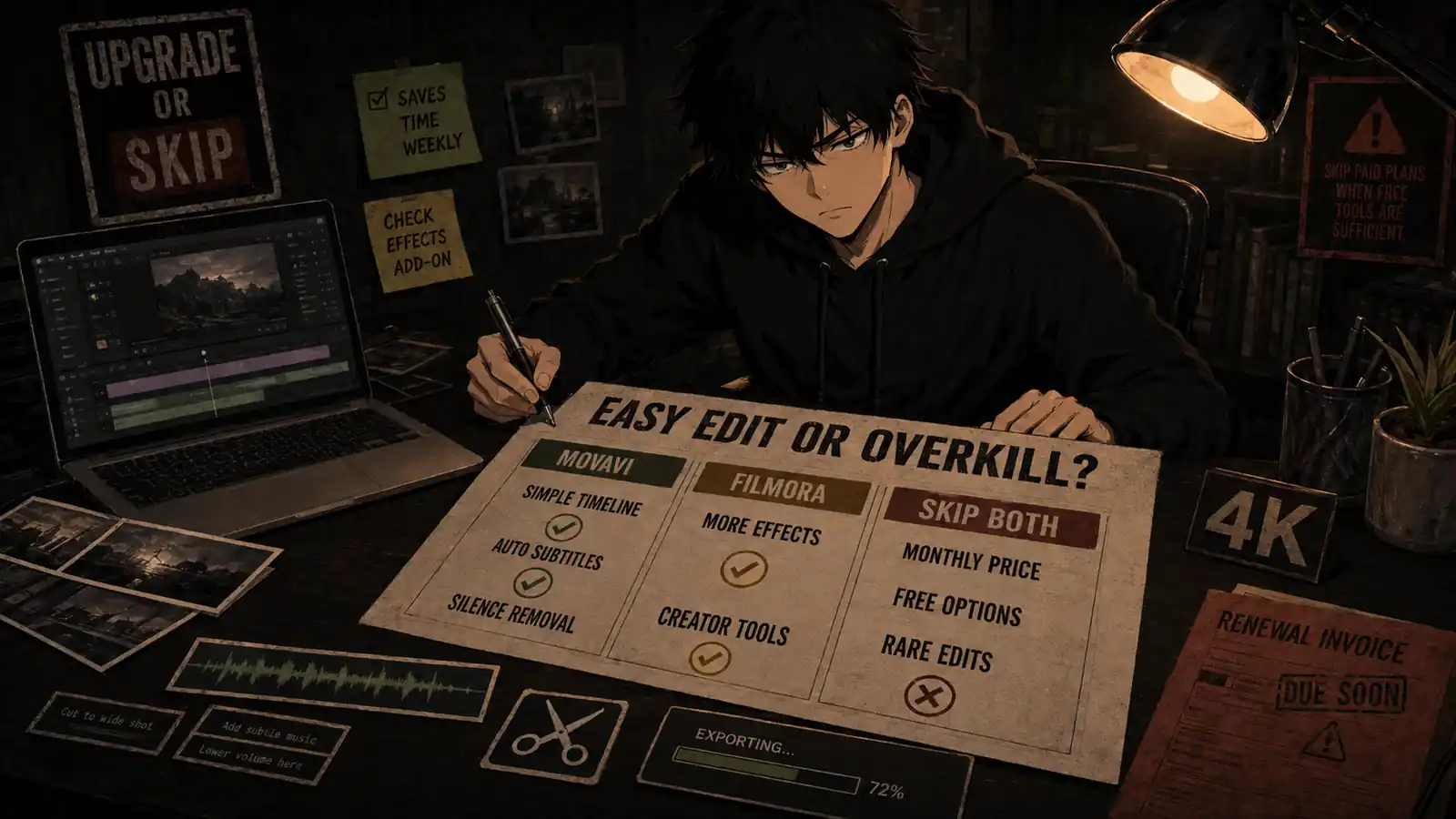
Filmora offers more creative depth, a larger ecosystem, and stronger tools for creators who expect their projects to become more complicated. Movavi is better for users who want to import clips, make clean edits, add captions and music, then export without turning video editing into a second occupation.
The decision depends on what you repeatedly edit.
Pricing and product details were checked on September 3, 2026. Movavi uses regional pricing and frequently runs promotions, so confirm the final checkout price, license type, renewal terms, and optional effects subscription before paying.
Quick Verdict
Movavi Video Editor is easier than Filmora for basic and intermediate editing.
Its interface is less crowded, common editing actions are easy to find, and useful automation tools reduce repetitive work. It is a good fit for beginners creating family videos, presentations, tutorials, simple YouTube content, product videos, and social clips.
However, Filmora is the stronger long-term choice for creators who want more advanced effects, greater timeline depth, more templates, stronger creative controls, and room to grow.
Upgrade to Movavi if you:
- Regularly edit straightforward videos on Windows or macOS
- Want a clean desktop timeline
- Need automatic subtitles and silence removal
- Prefer speed and simplicity over advanced control
- Create tutorials, family videos, simple YouTube content, or business clips
- Want a lifetime-license option instead of another permanent subscription
- Find Filmora unnecessarily busy
Choose Filmora instead if you:
- Want a larger effects and template ecosystem
- Create highly stylized social or YouTube videos
- Need more advanced keyframing, masking, tracking, or compositing
- Expect your editing requirements to grow
- Want more creative control over complex projects
- Already know Filmora and work efficiently in it
Stay free or skip both if you:
- Only edit short videos occasionally
- Can complete your work in CapCut Free
- Need professional color grading or audio post-production
- Are willing to learn DaVinci Resolve
- Mainly edit on a phone
- Do not export videos often enough to justify paid desktop software
Overall verdict: Upgrade only if simplicity saves you time every week.
Movavi Video Editor at a Glance
| Category | Movavi Video Editor 2026 |
|---|---|
| Best for | Beginners and casual desktop creators |
| Platforms | Windows and macOS |
| Trial | Available, with export restrictions depending on the build |
| Trial watermark | Yes on restricted trial exports |
| Monthly option checked | $19.95 introductory first month |
| Regular monthly price shown | $23.95 after the first month |
| Annual option checked | $69.95 |
| Lifetime option | Available; checkout pricing can vary |
| Maximum practical audience | Beginner to intermediate |
| Automatic subtitles | Yes |
| Silence removal | Yes |
| Motion tracking | Yes |
| Background replacement | Yes |
| 4K processing | Yes |
| Refund window | 14 days for eligible unresolved technical or qualifying issues |
| Capterra rating displayed | About 4.8/5 from more than 1,100 reviews |
The headline numbers make Movavi look affordable, but license type matters more than the discount.
What I Checked
For this review, I focused on the jobs a beginner is likely to perform repeatedly:
- Importing and organizing video clips
- Cutting and rearranging footage
- Adding transitions, titles, and music
- Adjusting audio volume and removing noise
- Generating automatic subtitles
- Removing pauses
- Applying basic color adjustments
- Working with vertical and horizontal formats
- Exporting a finished video
- Comparing workflow friction with Filmora
This is not a professional cinema-editing benchmark. The purpose is to determine whether Movavi makes ordinary video editing easier enough to justify paying for it.
What Is Movavi Video Editor?
Movavi Video Editor is a desktop nonlinear video editor for Windows and macOS.
It sits between simplified mobile editors and professional applications. It provides a multitrack timeline and enough manual control for real editing, but avoids presenting every professional tool at the same time.
The current 2026 version includes:
- Cutting, trimming, splitting, and joining
- Transitions and animated titles
- Color adjustment and LUT support
- Audio editing and noise reduction
- Automatic subtitles
- Automatic silence removal
- Motion tracking
- Video stabilization
- Chroma key
- Background replacement
- Auto-tracked cropping
- Speed adjustment and slow motion
- Picture-in-picture layouts
- Filters, overlays, stickers, and music
- 4K video processing
Movavi says the current version supports Windows 10 and Windows 11 on the PC side, with a minimum of 4 GB of RAM. Those minimum specifications describe whether the program can launch, not whether editing 4K footage will feel pleasant.
For longer or higher-resolution projects, more RAM, SSD storage, and a capable processor or graphics card will make a significant difference.
Is Movavi Easier Than Filmora?
Yes, especially during the first few projects.
Movavi’s interface generally feels calmer. Media files sit in a recognizable library, the preview window remains visible, and the timeline follows the layout used by most desktop editors.
Common actions—split, trim, delete, add transition, adjust speed, add text, and export—do not require much hunting.
Filmora is also designed for beginners, but it presents more features, creative assets, AI tools, and upgrade paths. That makes Filmora more capable, but also creates more interface noise.
Our Filmora review reached a similar conclusion: Filmora offers a strong balance between accessibility and creative depth, but its growing collection of tools can make the experience feel busier than necessary.
Movavi feels easier because:
- The interface contains fewer distractions
- Basic timeline tools are easy to locate
- Effects can be previewed by hovering
- Common AI tools use simple controls
- Export settings are understandable
- The workflow remains consistent across projects
Filmora feels more powerful because:
- It provides more creative effects and presets
- Its advanced tools offer greater control
- It is better suited to layered social content
- It gives growing creators more room to experiment
- Its ecosystem is larger
Movavi wins the first-hour test. Filmora is more likely to win the fiftieth-project test.
Ease-of-use winner: Movavi
Creative capability winner: Filmora
Movavi Video Editor Pricing
Movavi’s pricing requires careful reading because several purchase types and optional add-ons may appear at checkout.
When checked for this review, the US-facing purchase page showed:
| Option | Price checked | What it means |
|---|---|---|
| One-month subscription | $19.95 first month | Renews at $23.95 per month |
| Video Editor Plus | $69.95 | Annual or lifetime selection may be available depending on checkout |
| Video Suite Plus | $99.95 per year | Adds screen recording and media conversion |
| Movavi Effects | Optional extra | Can renew separately after its trial |
The official Movavi purchase page may show a different promotional price based on location, date, operating system, and selected license.
Monthly purchase math
At the regular advertised rate of $23.95 per month:
$23.95 × 12 = $287.40 per year
That is difficult to justify for a basic video editor.
The monthly option makes sense only if you need Movavi for one short project and cancel it immediately afterward.
Annual purchase math
At $69.95 per year, the effective monthly cost is approximately:
$69.95 ÷ 12 = $5.83 per month
The annual plan is much more reasonable for someone who edits throughout the year. It also includes updates during the subscription period, including qualifying major upgrades.
Lifetime license
Movavi also offers lifetime-license options in some checkout flows.
A lifetime license generally means continued use of the specific version purchased. It does not necessarily include every future major version. Movavi explains that minor updates and fixes for the purchased version may continue, while a later major release can require a new purchase.
That distinction matters.
“Lifetime” often describes the lifetime of the licensed version—not a legally binding promise that every future Movavi product will arrive at your door carrying snacks.
Choose lifetime if:
- The current version already does everything you need
- You dislike recurring subscriptions
- You do not need annual feature upgrades
- You expect to use the software for at least two years
Choose annual if:
- You want new major versions
- AI and automation features matter to you
- You expect the editor to keep changing
- You prefer predictable access to updates
Watch the Movavi Effects Add-On
The optional Movavi Effects subscription deserves its own warning.
The editor includes built-in titles, transitions, filters, and other assets. Movavi also promotes a larger effects library containing thousands of additional effects and music tracks.
At checkout, you may see a free Effects trial that automatically renews as a separate monthly or annual subscription if it is not canceled.
This add-on is not necessary for basic editing.
Before completing the purchase:
- Check whether Movavi Effects is selected
- Confirm when its trial ends
- Record its renewal price
- Remove it if you only need the editor
- Verify the final checkout total
A $69.95 editor can become a much more expensive purchase when an optional effects subscription quietly moves in and starts paying rent with your credit card.
Free Trial: Useful for Testing, Not Publishing
Movavi offers a trial, but it should not be treated as a permanent free editor.
The exact trial behavior can vary by version and promotional flow. Movavi’s official trial limitations page states that trial exports may include:
- A visible “Trial” watermark
- A 60-second video limit
- Saving only half the length of an audio file
- Some unavailable advanced export features
Some current purchase flows also advertise a seven-day full-access trial. Confirm the restrictions shown for the exact installer and offer you receive.
The trial is sufficient for evaluating:
- Interface comfort
- Timeline responsiveness
- Import compatibility
- Subtitle quality
- Available effects
- Export speed
- Whether your computer handles the software
It is not reliable for producing a final client or public video because the export may be watermarked or limited.
Do not finish a long project before testing a short export. Discovering the watermark after three hours of editing is a lesson, but not a particularly enjoyable one.
What Movavi Does Well
1. Basic editing is fast
Movavi makes cutting and arranging footage straightforward.
You can drag media onto the timeline, move clips, split them at the playhead, trim their edges, and place them across multiple tracks. The timeline provides enough precision for normal creator projects without surrounding every clip with professional controls.
This works well for:
- YouTube talking-head videos
- Product demonstrations
- Travel videos
- Family events
- Tutorials
- School presentations
- Internal business videos
- Simple promotional content
If your repeated workflow is “remove mistakes, add captions, include music, export,” Movavi is well matched to the job.
2. Automatic subtitles save real time
Movavi’s automatic subtitle tool turns spoken audio into editable captions. The current version also advertises more than 30 subtitle styles.
Automatic transcription still needs review. Names, technical terms, accents, background noise, and overlapping speech can produce errors.
However, correcting an existing caption track is usually faster than typing the entire video manually. For creators publishing weekly, that time saving can justify part of the purchase price.
3. Silence removal has a clear job
Silence removal identifies pauses and can shorten them automatically.
This is particularly useful for:
- Tutorials
- Commentary
- Courses
- Interviews
- Video podcasts
- Talking-head content
Movavi allows users to adjust pause length and volume thresholds, which is important because removing every natural pause can make speech sound as if the presenter is being chased.
Use the tool as a first pass, then review each cut.
4. Effects preview reduces unnecessary clicking
Movavi lets users preview many effects, transitions, filters, and titles by hovering over them.
This sounds minor, but it reduces a common editing annoyance: applying an effect, waiting for the preview, deciding it is terrible, deleting it, and repeating the process twelve times.
The effects library is not as deep as Filmora’s, but the selection process is efficient.
5. Auto-crop helps with multiple aspect ratios
Auto-tracked cropping can follow a subject while converting horizontal footage into vertical or square formats.
This is helpful when repurposing a longer video for:
- TikTok
- Instagram Reels
- YouTube Shorts
- Square social posts
Results still need inspection, especially when multiple people enter the frame or the subject moves quickly. But for a centered speaker or product demonstration, it can reduce manual reframing.
6. It offers enough audio tools for normal projects
Movavi includes volume controls, noise reduction, audio effects, synchronization options, and silence removal.
It is not a replacement for a dedicated audio workstation, but it provides enough control for tutorials, vlogs, presentations, and general YouTube videos.
For many beginners, improving speech clarity matters more than adding another cinematic transition.
Where Movavi Falls Short
1. The free version is not a real CapCut-style free plan
Movavi’s downloadable version is primarily a trial.
Watermarks and export limitations mean that users who want to publish finished videos will eventually need to pay.
CapCut provides a more capable free starting point for short-form and social video workflows. Our CapCut Pro review explains when its paid tools become useful, while the free version remains sufficient for many creators.
If budget is the main concern, try CapCut Free before purchasing Movavi.
2. Filmora provides more room to grow
Movavi handles ordinary editing well, but Filmora offers more creative flexibility.
Filmora is generally better for:
- Complex layered edits
- Advanced masks
- Detailed keyframing
- Stylized motion graphics
- Larger template collections
- Heavier effects use
- Creators experimenting with different visual styles
The tradeoff is complexity. Filmora may take longer to learn, and its interface can feel more promotional or crowded.
Our CapCut vs Filmora comparison also shows how Filmora occupies the space between lightweight social editing and professional desktop software.
Movavi sits slightly closer to the lightweight end.
3. Some useful creative assets cost extra
The optional Movavi Effects library can add a substantial recurring expense.
The editor itself includes usable assets, but creators attracted by the advertised collection of more than 10,000 effects should check which items are included in the base purchase and which require an additional subscription.
If the editor only feels complete after adding an expensive asset plan, compare the total annual cost with Filmora and other alternatives.
4. Advanced color and audio work is limited
Movavi includes color correction, LUT support, audio adjustments, and noise reduction. These tools are suitable for basic and intermediate work.
It is less appropriate for:
- Detailed color grading
- Professional audio mixing
- Advanced multicamera production
- Complex compositing
- Broadcast workflows
- Large collaborative projects
DaVinci Resolve is harder to learn but offers much stronger professional color, audio, and finishing tools—and its free version is unusually capable.
5. Lifetime licensing can create version confusion
A lifetime license sounds simple until a new major version appears.
The purchased version can continue working, but access to later major releases may require payment. That does not make the license dishonest, but buyers should understand what “lifetime” covers before choosing it.
Check the product name, version number, operating system, device limit, and upgrade policy on the final checkout screen.
Movavi vs Filmora
| Category | Movavi Video Editor | Filmora |
|---|---|---|
| Beginner setup | Easier | Easy, but busier |
| Interface | Cleaner | More feature-dense |
| Basic timeline editing | Excellent | Excellent |
| Automatic subtitles | Yes | Yes |
| Silence removal | Yes | Yes |
| Creative effects | Good | Stronger |
| Templates and assets | Smaller base selection | Larger ecosystem |
| Advanced controls | Limited to moderate | Stronger |
| Learning curve | Lower | Moderate |
| Free use | Trial restrictions | Free exports generally watermarked |
| Lifetime option | Available in some checkout flows | License options vary |
| Best for | Fast, straightforward editing | Growing content creators |
Choose Movavi over Filmora if:
- You value a cleaner interface
- You mainly create straightforward videos
- You dislike feature overload
- You want to finish edits quickly
- You rarely use advanced effects
Choose Filmora over Movavi if:
- You want more creative options
- You expect your editing skills to grow
- You create frequent social or YouTube content
- You need stronger masking and keyframing
- You regularly use templates and effects
Movavi is easier than Filmora, but Filmora is harder to outgrow.
What Real Users Say
Movavi’s product page displays a rating of approximately 4.8 out of 5, based on more than 1,100 Capterra reviews at the time of checking. Ratings and review counts change, so treat them as a current snapshot rather than permanent product specifications.
Common positive themes include:
- Easy-to-understand interface
- Fast basic editing
- Useful transitions and titles
- Low learning curve
- Good results for casual projects
- Convenient automatic tools
Common complaints include:
- Trial watermarks and limitations
- Confusing license choices
- Optional effects costs
- Limited advanced controls
- Performance issues on some systems
- Uncertainty around upgrades and renewals
The positive feedback supports Movavi’s strongest claim: it is easy to learn. The complaints are mostly about what happens around the editor—pricing, licenses, add-ons, and expectations of professional depth.
Pros and Cons
Pros
- Cleaner interface than Filmora
- Easy timeline for beginners
- Useful automatic subtitles
- Adjustable silence removal
- Auto-tracked cropping
- Straightforward export process
- Windows and macOS support
- Lifetime-license option available
- Enough features for regular creator work
- Lower learning curve than professional editors
Cons
- Trial exports may be watermarked or limited
- Monthly plan is poor long-term value
- Optional Effects subscription can be expensive
- Less creative depth than Filmora
- Limited professional color and audio tools
- Lifetime license may not include future major versions
- Pricing and plan presentation can be confusing
The Upgrade Test
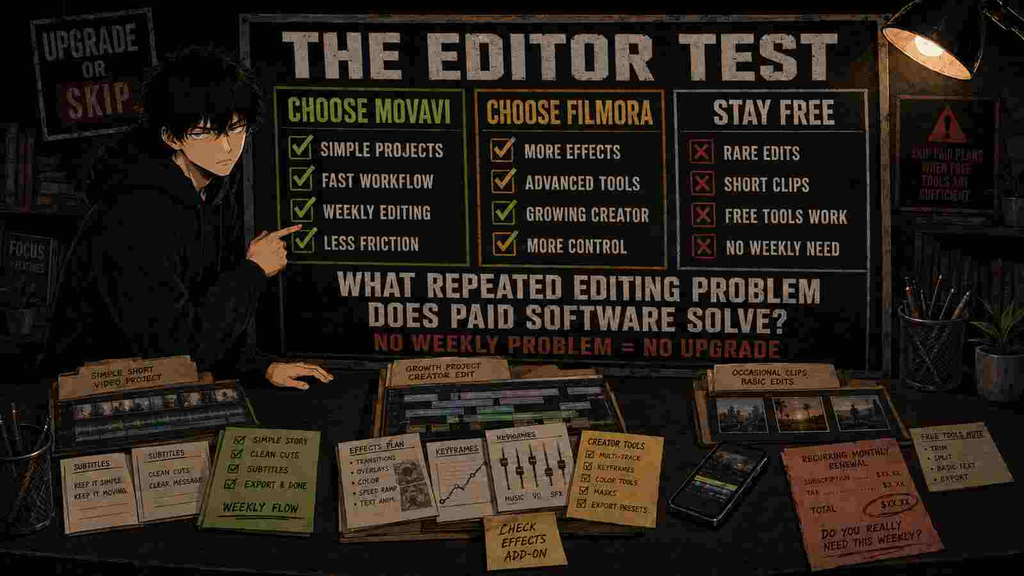
Ask one question:
What repeated editing problem does Movavi solve for me every week?
Good answers include:
- “I publish a tutorial every week and need automatic captions.”
- “I regularly remove pauses from talking-head videos.”
- “Filmora slows me down because I only use basic tools.”
- “I edit client product videos and need a fast desktop workflow.”
- “I frequently turn horizontal videos into vertical clips.”
Weak answers include:
- “I might start a YouTube channel someday.”
- “The lifetime deal looks discounted.”
- “The effects looked impressive in the advertisement.”
- “I want to own video-editing software just in case.”
- “It has AI.”
If Movavi does not solve a recurring problem, the cheapest plan is still more expensive than not buying it.
Final Verdict
Movavi Video Editor succeeds because it knows what it is.
It is not trying to replace Premiere Pro, Final Cut Pro, or DaVinci Resolve. It is designed for people who want a recognizable desktop timeline, useful automation, and enough creative control to produce polished everyday videos without a steep learning curve.
Movavi is easier than Filmora. Common tools are easier to find, the interface is calmer, and simple projects can be completed with less friction.
Filmora remains the better purchase for creators who expect to build more complicated timelines, use many effects, develop advanced editing skills, or expand their production style.
Upgrade
Upgrade to Movavi if you edit straightforward videos every week and its cleaner workflow saves meaningful time.
Choose Filmora
Choose Filmora if creative depth and long-term growth matter more than immediate simplicity.
Stay free
Stay with CapCut Free, iMovie, or another free editor if your projects are occasional and already easy to complete.
Skip
Skip Movavi if you need professional color grading, advanced audio production, complex compositing, or collaborative workflows.
Final verdict: Movavi is the easier editor. Filmora is the more capable editor. Upgrade only when simplicity is the feature you will repeatedly use.
Frequently Asked Questions
Is Movavi Video Editor worth it in 2026?
Yes, for beginners and intermediate users who regularly create straightforward videos. It is less worthwhile for occasional editors or users who need professional post-production tools.
Is Movavi easier than Filmora?
Generally, yes. Movavi has a cleaner interface and fewer distractions. Filmora offers more creative depth but presents more tools and options.
Is Movavi Video Editor free?
Movavi offers a downloadable trial rather than a permanent unrestricted free plan. Trial exports may contain a watermark, length restriction, or unavailable advanced features.
How much does Movavi Video Editor cost?
When checked, the monthly plan started at $19.95 for the first month and renewed at $23.95. An annual Video Editor Plus option was displayed at $69.95. Lifetime and promotional prices vary by checkout flow and region.
Does Movavi place a watermark on videos?
Paid exports do not normally include the trial watermark. Trial-version exports may contain a visible “Trial” watermark and other limitations.
Is the Movavi lifetime license really lifetime?
It generally provides continued use of the version purchased. Future major versions may require another purchase, so check the license terms before paying.
Can Movavi edit 4K video?
Yes, Movavi advertises 4K video processing. Actual editing and export performance depend heavily on the computer’s processor, graphics hardware, RAM, storage, and project complexity.
Does Movavi offer refunds?
Movavi advertises a 14-day money-back guarantee for eligible purchases when qualifying technical or other covered problems cannot be resolved. It is not necessarily an unconditional change-of-mind refund, so review the current policy.
Next Up
Surfshark Review: Better Value Than NordVPN?
Upgrade smarter. Skip louder.