
Disclosure: This article may contain affiliate links. If you buy through one of these links, Upgrade or Skip may earn a commission at no extra cost to you. That does not change the verdict.
CapCut and Filmora are both marketed as beginner-friendly video editors.
They just have different ideas about what a beginner needs.
CapCut assumes you want to finish a social video quickly, generate captions, add effects, and publish before the trend becomes ancient history.
Filmora assumes you want a recognizable desktop timeline, more conventional editing controls, and enough guidance to avoid immediately escaping into a three-hour professional editing tutorial.
I tested both editors with imported footage, timeline editing, text, captions, audio, effects, export settings, and their free-to-paid restrictions.
Neither editor wins every category.
The better choice depends on what you create, where you edit, and whether you actually need to pay.
Quick Verdict
CapCut is better for short-form content, mobile editing, automatic captions, social templates, and beginners who want a useful free starting point.
Filmora is better for beginners editing longer YouTube videos, tutorials, presentations, and other structured projects primarily on a computer.
My recommendation:
- Choose CapCut Free for Shorts, TikTok, Reels, captions, and occasional video editing.
- Choose Filmora Paid if you want a conventional desktop timeline without the learning curve of professional software.
- Skip Filmora Free for regular publishing because free exports normally include a watermark.
- Skip both paid plans until you complete a real test project and identify the paid features you actually need.
The short version:
CapCut wins the free-plan decision. Filmora wins the beginner desktop-workflow decision.
CapCut vs Filmora at a Glance
| Category | CapCut | Filmora | Winner |
|---|---|---|---|
| Free version | Useful for many finished projects | Free exports normally include a watermark | CapCut |
| Short-form video | Social-first and fast | Capable but less specialized | CapCut |
| Mobile editing | Strong mobile workflow | Available, but desktop is stronger | CapCut |
| Desktop timeline | Capable and improving | More conventional and organized | Filmora |
| Longer YouTube videos | Good for straightforward projects | Better for repeated desktop production | Filmora |
| Automatic captions | Fast and social-focused | Useful inside longer projects | Tie |
| Templates and effects | Strong social library | Large creative asset library | Depends |
| Export workflow | Simple for most creators | More conventional desktop controls | Filmora |
| Initial learning curve | Easier during the first hour | Slightly more structured | CapCut |
| Pricing clarity | Plans and credits require checking | Plans, assets, and credits require checking | Neither |
| Best free choice | Yes | No for regular watermark-free exporting | CapCut |
| Best paid desktop choice | Good | Better for structured projects | Filmora |
The Biggest Difference Is the Workflow
CapCut feels like a content-production platform that grew into a desktop editor.
Filmora feels like a desktop editor that keeps adding templates, automation, AI tools, and shortcuts.
CapCut prioritizes:
- Speed
- Social formats
- Automatic tools
- Templates
- Captions
- Mobile and desktop access
- Quick exporting
Filmora prioritizes:
- A conventional media library
- Preview window
- Multi-track timeline
- Desktop project organization
- Effects and transitions
- More visible manual controls
- Traditional export settings
Neither approach is automatically more professional.
A professional tool is one that reliably completes important or paid work. More panels do not automatically create better videos. Sometimes they just provide more locations for the setting you cannot find.
Which One Is Easier for Beginners?
CapCut is easier during the first hour.
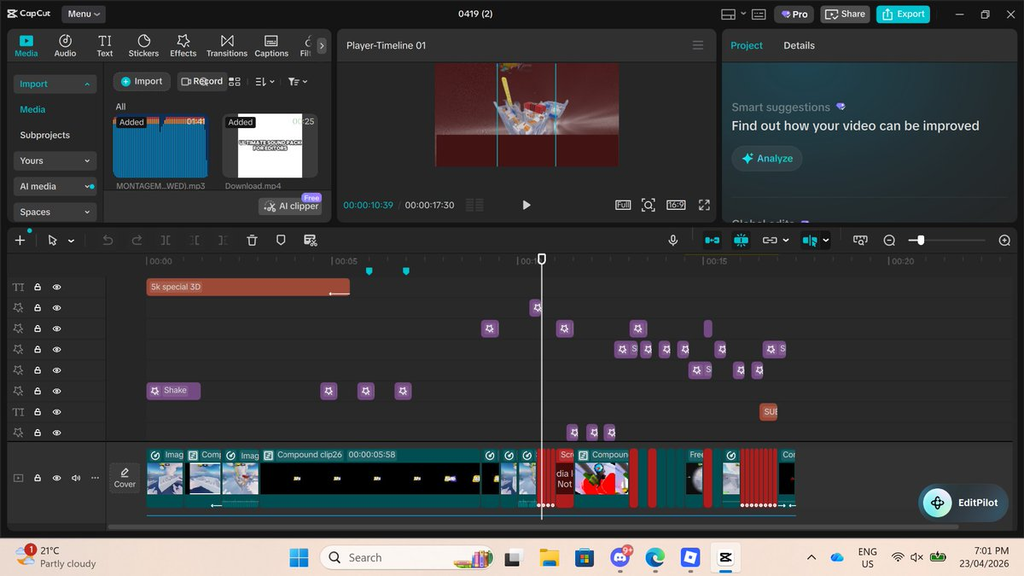
Filmora desktop editing interface showing a multi-track timeline for a beginner video project:EA Wang via X
Its basic workflow is direct:
- Import a clip.
- Drag it onto the timeline.
- Trim it.
- Add text or captions.
- Choose an aspect ratio.
- Export.
This works especially well for vertical and caption-heavy videos.
The interface encourages experimentation. Beginners can discover templates, effects, captions, background tools, and audio without first learning traditional editing terminology.
Filmora is also beginner-friendly, but it introduces a more conventional structure:
- Media library
- Preview window
- Video and audio tracks
- Timeline toolbar
- Property controls
- Export panel
That requires slightly more orientation, but the skills transfer more naturally to editors such as Premiere Pro, DaVinci Resolve, and Final Cut Pro.
The winner depends on what “easy” means:
- Easiest first short video: CapCut
- Easiest introduction to desktop editing: Filmora
For a closer look at CapCut’s interface, captions, AI tools, and paid restrictions, read my CapCut Pro Review 2026.
Which Is Better for Short-Form Content?
CapCut wins.
It is better aligned with:
- TikTok videos
- Instagram Reels
- YouTube Shorts
- Talking-head clips
- Caption-heavy content
- Memes
- Short promotional videos
- Converting longer footage into social clips
CapCut’s templates, captions, effects, background tools, and social-first layout reduce the steps between raw footage and a publishable video.
Filmora can produce the same formats, but it feels more like you are creating a conventional video and adapting it for social media afterward.
CapCut feels as if the social platform was part of the project from the beginning.
That difference matters when the workflow is repeated several times per week.
Saving five minutes once is not impressive. Saving five minutes across hundreds of videos becomes a real product advantage.
Which Is Better for YouTube?
Filmora wins for most beginners creating longer videos on a computer.
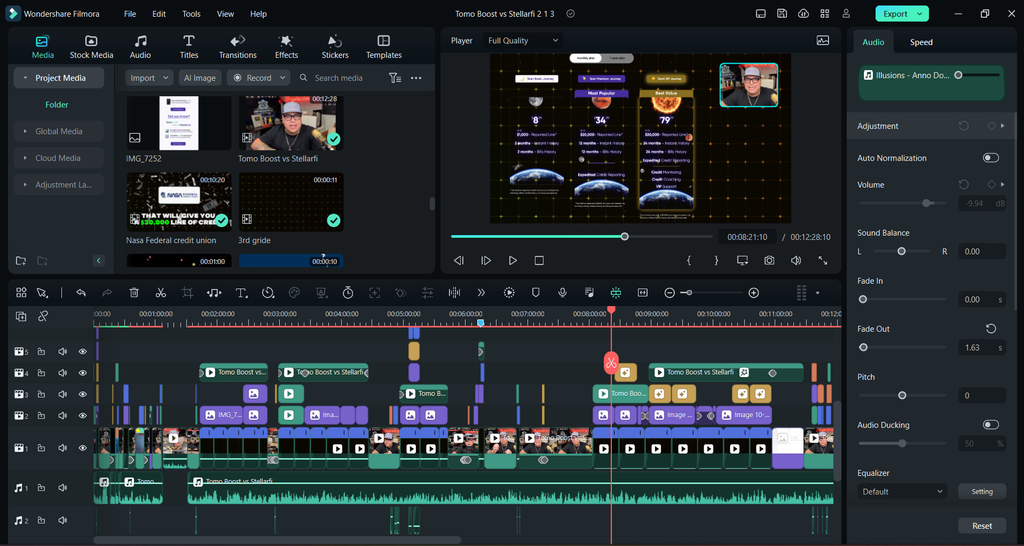
Screenshot source: Editors_zone3 via Fiverr. Filmora interface and available features may vary by version:Editors_zone3 via Fiverr
It provides a clearer working environment for:
- YouTube reviews
- Tutorials
- Screen recordings
- Presentations
- Educational videos
- Gaming footage
- Commentary videos
- Multi-track audio projects
- Videos requiring repeated titles and transitions
Filmora’s timeline feels more deliberate. Project media, tracks, preview, and detailed controls follow a recognizable desktop editing structure.
CapCut can edit longer videos. It is not permanently trapped inside fifteen-second dancing footage.
But as a project accumulates clips, audio tracks, titles, revisions, and effects, Filmora’s organization becomes more useful.
My complete Filmora Review 2026 explains where this desktop workflow works well and where the payment structure becomes more complicated.
Automatic Captions
Both editors provide automatic caption tools.
CapCut’s caption workflow feels faster and better integrated with short-form production. It is easy to generate captions, correct the text, change the visual style, and position them inside a vertical video.
Filmora’s caption tools fit more naturally inside a conventional desktop project. That can be helpful when subtitles are one part of a longer edit containing several video and audio tracks.
Neither tool should be trusted to publish automatic captions without review.
Accuracy can be affected by:
- Background noise
- Accents
- Multiple speakers
- Music
- Technical terminology
- Poor microphone quality
- Fast speech
Automatic captions reduce transcription work.
They do not remove the need to read.
Choose CapCut when captions are central to the workflow.
Choose Filmora when captions are one element inside a larger desktop project.
Effects, Templates, and Creative Assets
CapCut is stronger for fast, social-first effects.
Its library is designed to help users create visually active content without manually building every animation.
Filmora also includes a large selection of:
- Titles
- Transitions
- Effects
- Stickers
- Music
- Stock media
- Templates
The problem with both products is not a lack of assets.
It is understanding which assets are included.
An effect or template may be:
- Free
- Included with a paid plan
- Part of a separate asset subscription
- Limited to a particular platform
- Connected to AI credits
- Available only during a promotion
Before building an entire video around an asset, inspect its label and export conditions.
Otherwise, a harmless-looking transition can become a small financial investigation at export.
This issue is not unique to video editors. My Canva Pro Review 2026 reached a similar conclusion: premium assets only provide value when they support work you produce repeatedly.
CapCut Free vs Filmora Free
This is the clearest part of the comparison.
CapCut Free
CapCut Free can be useful for finished projects.
Depending on the platform, assets, template, and features selected, users can often complete basic edits and export without a permanent watermark.
CapCut states that watermark-free exporting depends on the version and materials used. Certain templates, Pro assets, or premium export choices may still produce a watermark or upgrade prompt. Check CapCut’s current watermark guidance.
The free version works well for:
- Cutting and trimming
- Basic timelines
- Social video
- Text
- Some caption features
- Basic audio
- Free transitions and effects
- Testing the overall workflow
Filmora Free
Filmora Free is mainly a testing environment.
You can import footage, edit a project, try effects, and evaluate the interface.
However, Wondershare states that videos exported with the free desktop version normally contain a watermark. Check Filmora’s official free-version information.
That makes it useful for deciding whether you like Filmora.
It makes it less useful as a permanent free editor for published work.
Free-Plan Winner
CapCut wins clearly.
If your software budget is zero and the finished video needs to be usable, begin with CapCut.
CapCut Pro Pricing
Prices vary by region, platform, taxes, and promotions. Always check the final checkout screen.
At the time of this comparison, CapCut listed approximately:
- $19.99 per month
- $179.99 per year
The annual price averages about $15 per month before taxes.
CapCut notes that prices can vary by region and platform. Check the current CapCut plan comparison.
Pro may provide expanded access to:
- Premium effects and templates
- Advanced caption tools
- Background removal
- Higher export options
- Cloud storage
- Cross-device workflow features
- Selected AI tools
Some generative AI tools may still use credits.
Paying for Pro does not necessarily make every AI button unlimited. Apparently even artificial intelligence has learned about metered billing.
Filmora Pricing
At the time checked, Filmora’s US checkout page displayed an Advanced annual plan at approximately:
- $59.99 for the promotional first year
- A higher standard renewal price
- 1,000 Filmora AI credits per month
- Watermark-free exporting
- 4K exporting
- Creative assets
- Continuous version upgrades under the displayed plan terms
Filmora may also display monthly and perpetual options depending on the device and region. Check Filmora’s current checkout page.
Before purchasing, confirm whether your plan includes:
- Desktop access
- Mobile access
- Creative assets
- Major-version upgrades
- Cloud storage
- AI credits
- The specific export formats you need
Filmora’s perpetual option generally applies to the purchased major version.
It should not automatically be interpreted as access to every future version.
Pricing Winner
At the prices displayed during this check, Filmora has the lower annual entry cost.
But the cheaper subscription is not automatically the better value.
CapCut may save more time for someone producing social videos every day. Filmora may provide better value for someone editing structured desktop projects every week.
The Cost per Project
Subscription value becomes clearer when divided by actual output.
CapCut Pro at $179.99 per Year
| Projects per year | Approximate cost per project |
|---|---|
| 12 | $15.00 |
| 52 | $3.46 |
| 104 | $1.73 |
| 260 | $0.69 |
Filmora at a Displayed $59.99 Annual Offer
| Projects per year | Approximate cost per project |
|---|---|
| 12 | $5.00 |
| 52 | $1.15 |
| 104 | $0.58 |
| 260 | $0.23 |
This calculation does not include separately paid assets, additional AI credits, taxes, or renewal-price changes.
If Filmora slows down a social workflow repeated daily, its lower annual price does not automatically make it better value.
If CapCut Pro adds nothing essential to a monthly YouTube project, paying more does not become sensible because its templates are energetic.
Exporting and Watermarks
Perform a test export before committing to either editor.
CapCut Free can often export basic projects cleanly, but premium assets and certain features may change the export conditions.
Filmora Free allows you to test the editor, but the finished export normally includes a watermark.
Filmora paid plans remove the regular trial watermark, although users should still check whether a project contains assets outside the purchased plan.
Public Filmora discussions show that export problems can also occur when:
- The wrong Wondershare account is active
- A license has not synchronized
- The license covers an older major version
- A separately paid creative asset was used
- The application cannot verify the account
Filmora’s official account identified account mismatch, license synchronization, offline mode, and version mismatch as possible causes in one user discussion. Read the Filmora export discussion.
The practical rule is simple:
Export a short test before spending hours completing the project.
A video editor should reveal its financial expectations before the deadline, not during it.
AI Features
Both products increasingly promote AI tools.
Depending on the plan and version, these may include:
- Automatic captions
- Background removal
- Object removal
- Speech-to-text
- Text-to-speech
- Audio cleanup
- Translation
- Smart reframing
- Video generation
- Thumbnail assistance
- Music or sound generation
CapCut’s AI features feel more connected to fast social production.
Filmora places AI tools inside a conventional desktop environment.
The main limitation is that some AI functions use credits instead of being covered entirely by the subscription.
Before paying, ask:
- Is this feature included in my plan?
- How many credits does one use consume?
- Do unused credits expire?
- What happens after I reach the limit?
- Is there a non-AI tool that completes the same task?
Do not buy an editor because it contains twenty AI buttons.
Buy it because one or two of those buttons repeatedly save meaningful time.
Performance and Hardware
Performance depends on:
- Processor
- Graphics card
- RAM
- Storage speed
- Video codec
- Resolution
- Effects
- Project length
- Background applications
CapCut feels lighter during straightforward social projects, but demanding AI functions, effects, and high-resolution footage can still slow it down.
Filmora is designed for larger desktop projects, but longer timelines and multiple effects increase hardware demands.
For both editors:
- Keep footage on an SSD.
- Use proxy media for demanding footage when available.
- Close unnecessary background applications.
- Test the exact codec and resolution you need.
- Do not judge performance using an empty timeline.
An editor that opens quickly can still collapse emotionally when given an hour of 4K footage.
Community Complaints
Both editors receive complaints about monetization.
Common CapCut Complaints
- Previously free tools becoming Pro
- Pro prompts appearing during export
- Regional price differences
- Templates changing status
- AI-credit limitations
- Different features across desktop and mobile
Common Filmora Complaints
- Watermarked free exports
- Confusing perpetual-plan expectations
- Major-version upgrades requiring payment
- Creative assets sold separately
- AI-credit limits
- License synchronization problems
- Different mobile and desktop purchases
A Filmora feedback discussion contains repeated requests for simpler subscriptions and better filtering of separately paid assets. Filmora’s official account acknowledged that separate AI and creative-asset systems can create confusion. Read the Filmora user feedback thread.
Community complaints do not prove that every customer will have the same experience.
They show what needs to be verified before paying.
Choose CapCut If:
- You create TikTok, Reels, or YouTube Shorts.
- Automatic captions are central to your workflow.
- You edit on both mobile and desktop.
- You need a useful free option.
- Templates and automatic formatting save time.
- Publishing speed matters more than traditional organization.
- You can avoid Pro assets when staying free.
Choose Filmora If:
- You mainly edit on Windows or macOS.
- You create longer YouTube videos.
- You want a conventional multi-track timeline.
- You make tutorials, presentations, or screen recordings.
- You want more structure without moving to professional software.
- You publish often enough to justify paying.
- You have checked exactly what the selected plan includes.
Stay Free If:
- CapCut Free already completes your projects.
- You only need trimming, text, captions, and basic audio.
- You publish occasionally.
- Premium templates do not affect the final result.
- You cannot identify a recurring paid feature.
- The project does not generate income or save meaningful time.
Skip Both If:
- Your existing editor already works.
- You produce only a few videos per year.
- You want deeper color grading or audio control.
- You dislike subscriptions and AI-credit systems.
- Neither product solves a repeated workflow problem.
- You are considering payment mainly because an effect has a Pro label.
Free alternatives such as DaVinci Resolve and Kdenlive may offer more control, although their learning curves can be steeper.
Upgrade, Stay Free, or Skip

| User | Recommended decision |
|---|---|
| Casual social creator | Stay with CapCut Free |
| Frequent Shorts or TikTok creator | Consider CapCut Pro |
| Beginner YouTuber editing on desktop | Consider Filmora Paid |
| Occasional YouTube creator | Try CapCut Free first |
| Tutorial or presentation creator | Filmora Paid |
| Mobile-first creator | CapCut |
| User needing watermark-free exports for $0 | CapCut Free or another free editor |
| User wanting advanced professional control | Consider DaVinci Resolve or Premiere Pro |
| User unable to name a needed paid feature | Skip both subscriptions |
Final Verdict
CapCut is the better editor for fast social content and the better free choice.
Filmora is the better paid desktop editor for beginners who want a traditional timeline without immediately moving to professional software.
Choose CapCut when speed, captions, templates, mobile access, and short-form publishing matter most.
Choose Filmora when you mainly edit on a computer and produce longer, more structured videos.
Choose neither paid plan when free tools already complete your projects.
If I had to recommend one starting path, it would be:
- Begin with CapCut Free.
- Complete a real project.
- Identify what slows you down.
- Test Filmora if you need a more structured desktop workflow.
- Pay only when one editor solves a repeated problem.
Software companies are very good at creating upgrade urgency.
Your video will not improve because the checkout page used a countdown timer.
FAQ
Is CapCut better than Filmora for beginners?
CapCut is easier for short-form content and provides a more useful free starting point. Filmora is better for beginners who want a conventional desktop timeline for longer projects.
Is Filmora completely free?
Filmora can be downloaded and used for editing, but the free desktop version normally adds a watermark to exported videos.
Can CapCut export without a watermark?
Basic CapCut projects can often be exported without a watermark. Results depend on the platform, template, assets, and features used.
Which is better for YouTube?
Filmora is generally better for longer YouTube videos edited on desktop. CapCut is better for Shorts, caption-heavy content, and fast social production.
Which is cheaper?
At the prices checked for this comparison, Filmora’s displayed annual offer was lower than CapCut Pro’s listed annual price. Regional prices, taxes, promotions, and renewal rates can change.
Does Filmora offer a perpetual license?
A perpetual option may be available in some regions. It normally covers the purchased major version rather than every future major release.
Do both editors include AI features?
Yes, but some features may require AI credits or a specific plan. Check the allowance for the exact tool you intend to use.
Is Filmora more professional than CapCut?
Filmora has a more conventional desktop layout, but that does not automatically make it more professional. CapCut may be the more practical professional tool for high-volume short-form creators.
Can projects be transferred between CapCut and Filmora?
There is no reliable direct project conversion. You can export a completed video and import it into the other editor, but individual tracks and effects will normally be lost.
More Software Reviews
Browse the latest Upgrade or Skip software reviews for more Free-versus-Paid comparisons and practical subscription decisions.
Next Up:
Perplexity Pro Review: Is It Worth Paying for Better Search?
Upgrade smarter. Skip loouder.