
Disclosure: This post may contain affiliate links. If you buy through them, we may earn a small commission at no extra cost to you.
Filmora is one of the easiest desktop video editors for beginners who want more control than a mobile-first app—but that does not automatically make it better than CapCut.
After testing Filmora’s core editing workflow, I can understand why it appeals to beginners. The timeline is approachable, basic cutting and arranging feel familiar, and features such as titles, transitions, captions, audio tools, and AI-assisted editing are easy to find.
But Filmora’s biggest weakness also appears at the beginner level: the free desktop version normally adds a watermark when you export. Some assets and AI features may have separate limits, and the pricing can become more complicated than the editing itself.
CapCut remains the easier choice for fast social videos and provides a more useful free starting point for many creators. Filmora makes more sense if you want a traditional desktop timeline, regularly create longer videos, and already expect to pay for your editor.
Quick Verdict
Upgrade to Filmora if you regularly edit longer desktop projects and want something easier to learn than professional video-editing software.
Stay with CapCut if you mainly create Shorts, Reels, TikToks, or occasional videos and your current workflow already works.
Skip both paid plans if a free editor already completes your projects without causing a real problem.
How I Tested Filmora
I installed Filmora and tested the core workflow a beginner is most likely to use:
- Importing footage
- Adding clips to the desktop timeline
- Trimming and splitting clips
- Rearranging video and audio tracks
- Adding text and transitions
- Generating and editing captions
- Exploring the available AI tools
- Checking export options
- Confirming the free-version watermark restriction
I also compared the workflow with CapCut and checked Filmora’s current pricing information, official documentation, system requirements, and recurring complaints found in public user discussions.
Those public comments are included as additional context, not as a replacement for hands-on testing.
What Is Filmora?
Filmora is a desktop and mobile video editor made by Wondershare. It sits between simple template-based editors and more complicated professional programs.
Its main selling point is accessibility.
You get a recognizable multitrack timeline, drag-and-drop editing, titles, transitions, filters, audio tools, keyframing, motion tracking, automatic captions, background tools, and a growing collection of AI-assisted features.
Filmora is not trying to be the most advanced editor available. It is trying to make a more traditional editing workflow feel manageable for ordinary users.
For beginners moving from mobile editing to a desktop editor, that is a useful position.
Is Filmora Easy for Beginners?
Yes. Ease of use is still Filmora’s strongest argument.
The interface follows a familiar desktop editing structure:
- Media and effects in the upper-left area
- Video preview on the upper-right
- Multitrack timeline across the bottom
- Editing controls for the selected clip
- Drag-and-drop titles, transitions, music, and effects
During testing, the basic workflow was easy to understand: import the clips, drag them onto the timeline, remove unwanted sections, rearrange the remaining clips, add text or audio, preview the project, and export.
Filmora gives you more visible control than a basic mobile editor, but it does not immediately confront you with the dense panels and advanced terminology found in professional editing software.
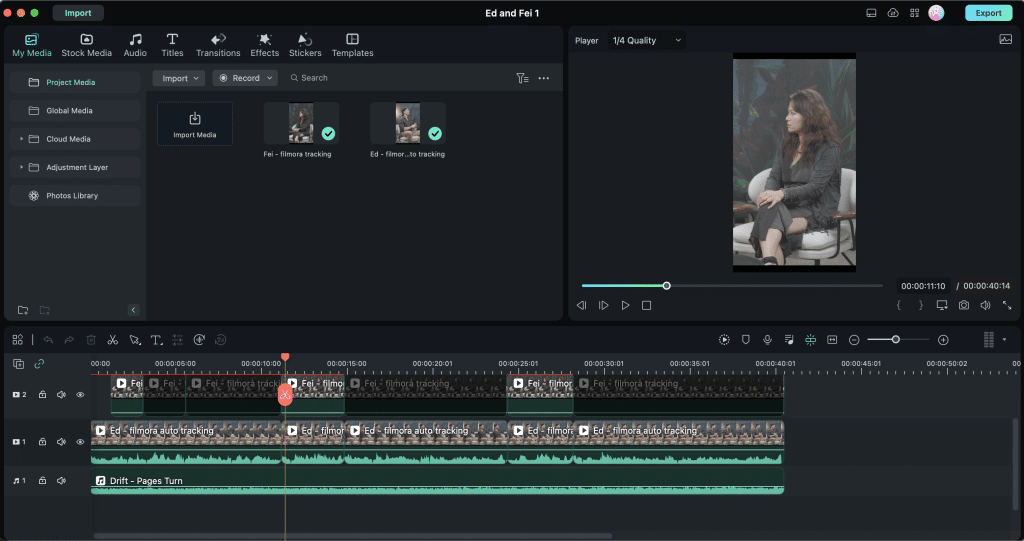
A real Filmora editing project showing its desktop timeline. Screenshot used for interface illustration. Source: Feisworld Media.
What Filmora Does Well
1. The Desktop Timeline Is Beginner-Friendly
Filmora gives beginners enough control to build a structured project without forcing them to learn professional editing software first.
Multiple video, audio, and text tracks make it easier to understand how the project fits together. You can see where clips overlap, where the music begins, and where titles or captions appear.
CapCut Desktop also has a capable timeline, but CapCut still feels more closely connected to quick social content. Filmora feels more like a traditional desktop editor simplified for regular users.
2. Basic Editing Tools Are Easy to Find
Trimming, splitting, rearranging, and deleting clips did not require much explanation during testing. The tools a beginner needs most are placed where you would reasonably expect to find them.
A beginner editor should help you finish a video—not make learning the editor the main project.
3. Titles, Effects, and Transitions Are Easy to Add
Filmora includes a large library of titles, transitions, filters, audio, and animated elements. These can help a beginner create a more polished-looking video without manually building every animation.
The danger is obvious: because effects are easy to add, it is also easy to add too many. A transition existing does not mean your video needs it.
4. Automatic Captions Can Save Time
Filmora includes speech-to-text and automatic caption tools. During testing, the feature provided a faster starting point than manually typing every line.
Names, accents, background noise, product terminology, and overlapping speakers can still cause errors. Automatic captions should be treated as a first draft, not a court transcript.
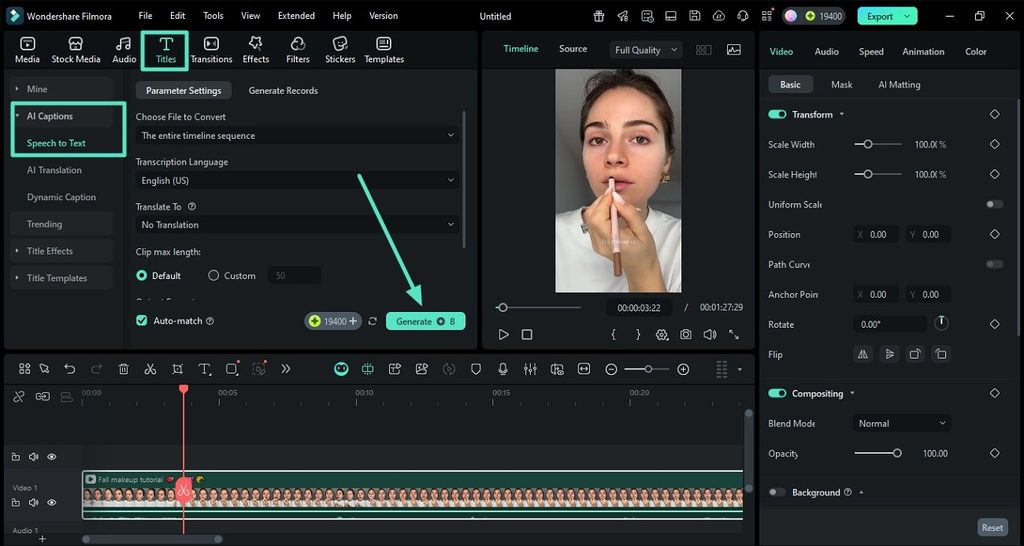
Filmora’s desktop AI Captions interface. Source: Wondershare Filmora Auto Caption Guide.
5. Filmora Gives Beginners Room to Grow
Depending on the current version and plan, Filmora includes keyframing, motion tracking, background removal, multicamera editing, audio cleanup, speed ramping, color adjustment, speech-to-text, text-to-speech, smart short-clip tools, and AI-assisted enhancement.
The benefit is that you can begin with simple cuts and captions, then gradually try more advanced tools without moving every project into different software.
The limitation is that some AI tools, premium assets, or additional services may use credits or have separate restrictions.
Where Filmora Becomes Frustrating
1. The Free Version Is Mainly a Trial
Filmora can be downloaded and used without paying, but its official documentation states that exports from the free desktop version normally include a Filmora watermark.
You can use the free version to explore the interface, import footage, test the timeline, check performance, try effects, and review export settings. But a watermarked video is not a practical final export for most YouTube channels, client work, or business content.
Wondershare has advertised limited promotions that may give eligible new users a watermark-free export. These offers can change or expire, so they should not be treated as a permanent free plan.
“Free to edit” and “free to produce a usable final video” are not the same promise.
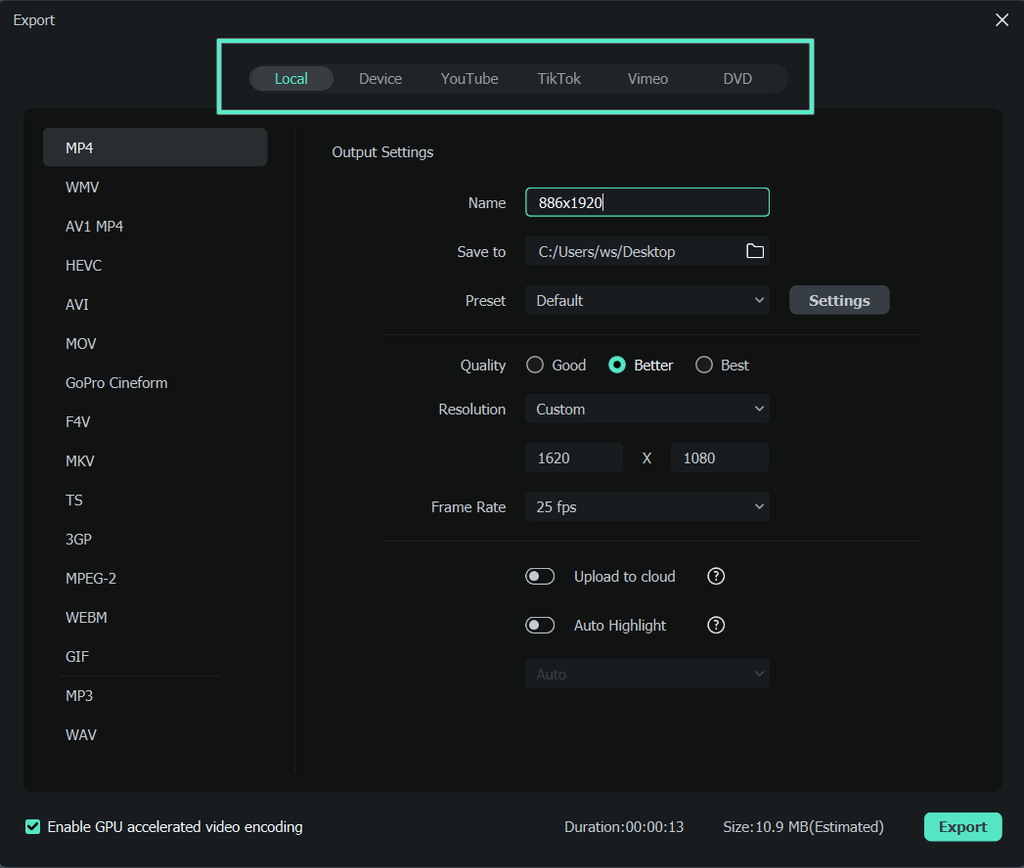
Filmora’s desktop export window with format, quality, resolution, and frame-rate controls. Source: Wondershare Filmora Watermark Guide.
2. Pricing Is More Complicated Than It First Appears
Filmora commonly offers monthly, annual, and perpetual purchase options. The displayed price can change according to region, operating system, promotion, taxes, included creative assets, AI allowances, and optional add-ons.
Before paying, check whether the plan renews, whether it is limited to one operating system, whether future major versions are included, whether AI tools consume credits, and what the normal renewal price will be.
“Perpetual” generally means continued access to the version purchased. It does not necessarily mean access to every future major version.
3. Public User Complaints Should Not Be Ignored
Positive public comments commonly mention Filmora’s easy learning curve, useful titles and transitions, and simple YouTube workflow.
Recurring complaints include confusion around perpetual licenses, extra charges for some assets, activation problems, support difficulty, cancellation frustration, and discovering restrictions late in a project.
These comments are anecdotal, but the recurring pattern supports one practical rule: test the entire workflow—including export—before paying for a long-term plan.
Filmora Free vs Paid
| Feature | Filmora Free/Trial | Filmora Paid |
|---|---|---|
| Import and edit footage | Yes | Yes |
| Multitrack timeline | Yes | Yes |
| Titles and transitions | Available | Available |
| Clean desktop exports | Normally no | Yes |
| Filmora watermark | Normally added | Removed |
| AI features | Limited or credit-based | Depends on plan and credits |
| Premium assets | Restricted | Depends on package |
| Best for | Testing Filmora | Regular published work |
Filmora Pricing: What Are You Actually Paying For?
Filmora’s prices change frequently. At the time of this review, Wondershare’s US Windows pricing page displays monthly, annual, and perpetual options. The monthly option has commonly been displayed around $19.99, while annual and perpetual prices vary according to the active offer.
Check the official Filmora pricing page before purchasing.
If an annual plan costs approximately $50–$70, that works out to roughly $2–$3 per video at two videos per month, or around $1–$1.35 per video at one video per week.
If Filmora saves an hour on every weekly video, the subscription may be easy to justify. If you open it four times per year, you may be paying for a very attractive icon on your desktop.
Filmora vs CapCut for Beginners

| Category | Filmora | CapCut |
|---|---|---|
| Best for | Desktop projects and longer videos | Fast social and short-form videos |
| Learning curve | Easy | Very easy |
| Desktop timeline | Traditional and structured | Fast and modern |
| Mobile workflow | Available | Stronger |
| Free desktop value | Limited by export watermark | More useful for many beginners |
| Automatic captions | Yes | Yes |
| Best beginner | YouTube and desktop creator | Shorts, Reels, and TikTok creator |
Choose Filmora if you edit mainly on desktop, create longer YouTube videos, use several tracks, and are prepared to pay for clean exports.
Choose CapCut if you primarily create vertical social videos, frequently edit on mobile, want faster templates, or need a more useful free starting point.
Read our complete CapCut Pro Review 2026 for a closer look at where CapCut’s free features end and its paid restrictions begin.
What About Canva?
Canva can handle simple social clips, presentations, and template-based promotional videos, but it is not a full replacement for Filmora’s multitrack timeline.
If most of your work consists of social graphics, thumbnails, presentations, and very simple video content, read our Canva Pro Review 2026 before paying for a separate editor.
Who Should Upgrade, Stay Free, or Skip?
Upgrade If
- You edit videos every week.
- You prefer a traditional desktop timeline.
- You create longer YouTube, tutorial, or business videos.
- Filmora noticeably reduces your editing time.
- You understand the renewal, upgrade, AI-credit, and asset terms.
- Clean exports are necessary for published or paid work.
Stay Free If
- You are still learning the interface.
- You have not fully tested export performance.
- You are comparing Filmora with CapCut.
- You only need a practice project.
- You are not ready to commit to an annual plan.
Skip If
- CapCut already handles your videos comfortably.
- You edit only a few times per year.
- You need unlimited watermark-free exports without paying.
- You dislike subscriptions, add-ons, or credit-based AI features.
- You want professional control and are willing to learn DaVinci Resolve.
- Your computer struggles with your normal footage.
Final Verdict: Is Filmora Better Than CapCut for Beginners?
Filmora is better than CapCut for a specific kind of beginner: someone who wants to edit mainly on a computer, create longer projects, and learn a traditional timeline without immediately moving into professional software.
CapCut is better for someone who values speed, mobile editing, social templates, automatic tools, and a more useful free starting point.
- Choose Filmora for an approachable desktop editing workflow.
- Choose CapCut for fast short-form content and easier cross-device creation.
- Choose neither paid plan if your current free editor already completes the work.
FAQ
Is Filmora completely free?
Filmora can be downloaded and used for editing, but the free desktop version normally adds a watermark to exported videos.
Is Filmora easier than CapCut?
Both are beginner-friendly. CapCut is generally faster for mobile and short-form social content. Filmora provides a more traditional desktop timeline for longer projects.
Does Filmora have a perpetual license?
Filmora may offer a perpetual option, but it normally applies to the version purchased and does not necessarily include every future major version.
Does Filmora include automatic captions?
Yes. Accuracy depends on audio quality, accents, background noise, terminology, and overlapping speakers, so the generated text still needs review.
Is Filmora good for YouTube beginners?
Yes. Filmora is a reasonable option for beginners creating YouTube videos, tutorials, presentations, and other desktop projects.
Next Up
PDFelement Review: Is It Worth Paying for a PDF Editor?
Upgrade smarter. Skip louder.