Welcome back to Upgrade or Skip.
Smallpdf has an unusually good name for a PDF tool. It tells you exactly what the product does, without adding “AI-powered enterprise document intelligence platform” and making everyone tired before breakfast.
The software combines more than 30 PDF tools for compressing, converting, merging, splitting, editing, signing, organizing, and analyzing documents. Most of those tools can be opened for free, which creates the obvious question:
If Smallpdf already works without payment, why subscribe to Smallpdf Pro?
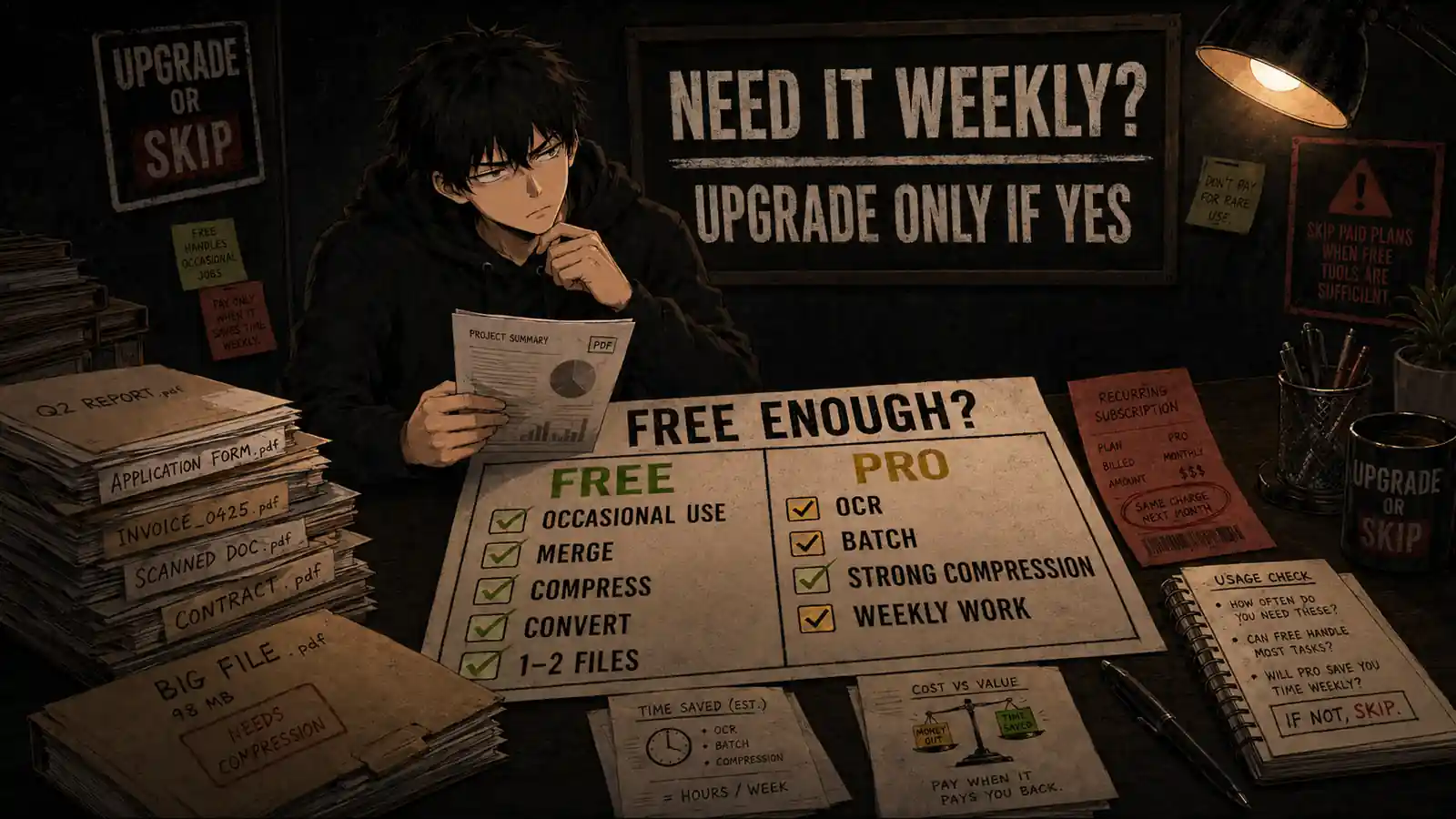
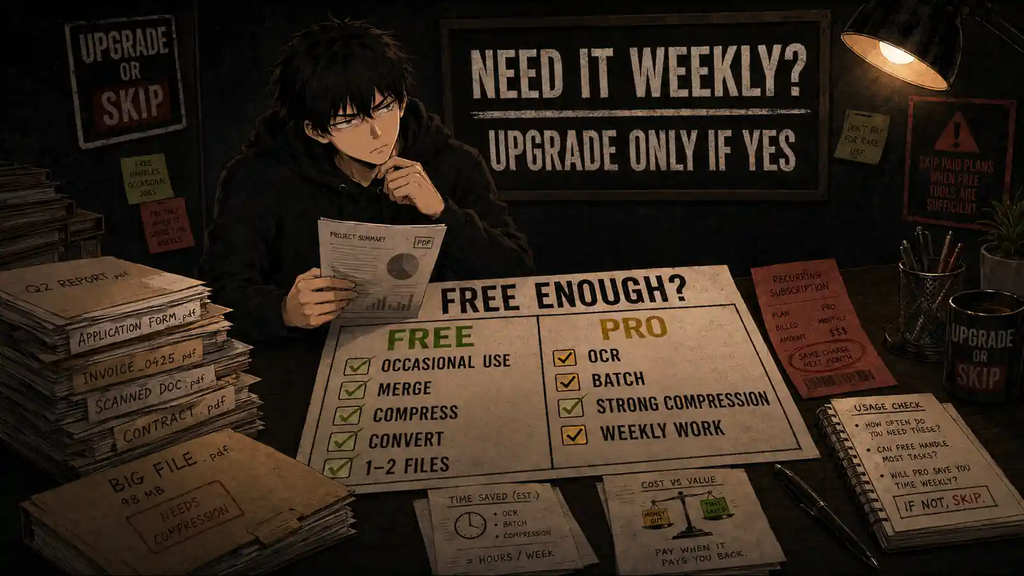
The short answer is that Pro does not radically reinvent the product. It removes usage limits and unlocks the features that matter when PDFs become part of your regular workload.
For occasional conversions and one-off document fixes, the free version is probably enough. For repeated PDF work, scanned documents, batch processing, stronger compression, or unrestricted downloads, Pro becomes easier to justify.
Let’s work out which side of that line you are actually on.
Pricing and plan details checked September 1, 2026. Software subscriptions change, so confirm the current terms on the official Smallpdf pricing page before paying.
Quick Verdict
Smallpdf Pro is worth upgrading to if you process PDFs several times a week and regularly run into the free plan’s limits.
Its main strength is convenience. The tools are fast, focused, and much easier to understand than a traditional desktop PDF editor. You can compress a report, convert a PDF into Word, rearrange pages, add a signature, and download the result without navigating an interface that appears to have been designed by a committee in 2009.
However, the free version already handles many occasional tasks. If you only need to merge two documents or compress an attachment once or twice a month, subscribing would mostly turn a free convenience into another forgotten recurring charge.
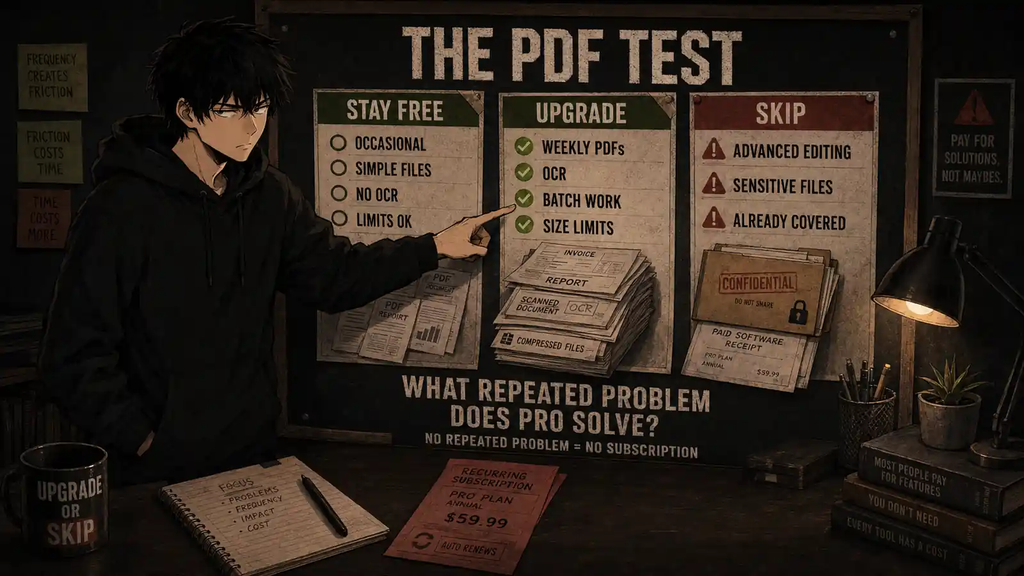
Upgrade if you:
- Work with several PDFs every week
- Regularly convert documents into Word, Excel, or PowerPoint
- Need OCR for scanned documents
- Use Strong Compression for strict upload limits
- Process multiple documents in batches
- Want unlimited downloads and fewer interruptions
- Frequently send documents for electronic signature
Stay free if you:
- Only need occasional PDF conversions
- Process no more than one or two documents at a time
- Mainly merge, split, rotate, or compress simple files
- Do not need OCR, batch processing, or advanced text editing
- Can tolerate daily usage limits
Skip Smallpdf if you:
- Need advanced professional PDF editing
- Work extensively with complex forms or technical documents
- Require detailed redaction and document-compliance workflows
- Cannot upload sensitive documents to a cloud-based service
- Already own another PDF editor that covers the same jobs
Overall verdict: Upgrade for recurring PDF work. Stay free for occasional fixes.
What Is Smallpdf?
Smallpdf is a browser-based collection of document tools originally launched in Switzerland in 2013.
Instead of placing every function inside one complicated editor, Smallpdf divides common PDF jobs into focused tools. You select what you want to do, upload the document, process it, and download the result.
Its tool collection includes:
- Compress PDF
- PDF Converter
- PDF to Word, Excel, PowerPoint, and JPG
- Word, Excel, PowerPoint, and JPG to PDF
- Merge and Split PDF
- Organize, rotate, extract, and delete pages
- Edit and annotate PDF
- OCR
- Electronic signatures
- Password protection
- Redaction
- AI PDF summarization and chat
That focused structure is the product’s biggest advantage. Smallpdf does not expect you to become a PDF specialist before it allows you to rotate page three.
The company says file transfers use 256-bit TLS encryption and lists ISO/IEC 27001 certification and compliance with regulations including GDPR and CCPA. You can review its current security information through the Smallpdf Trust Center.
Those protections are reassuring, but they do not remove the need for judgment. Extremely sensitive legal, medical, financial, or confidential corporate documents may still require an approved offline workflow.
Smallpdf Free vs Pro
The free plan is more useful than the word “limited” might suggest.
According to the current Smallpdf support documentation, free users can access the basic features of its online tools, use connected workflows, and integrate the service with Google Drive, Dropbox, and Google Chrome.
The central limitation is volume. Smallpdf currently states that free users can process up to two conversions per day, while several tools also apply download or feature restrictions.
Here is the practical difference:
| Feature | Smallpdf Free | Smallpdf Pro |
|---|---|---|
| Basic PDF tools | Yes, with limits | Unlimited |
| Document downloads | Limited | Unlimited |
| Standard compression | Yes | Yes |
| Strong Compression | No | Yes |
| OCR | Restricted | Full access |
| Batch processing | No | Yes |
| Edit existing PDF text | Restricted | Included |
| AI PDF tools | Limited | Unlimited |
| Mobile access | Limited | Unlimited |
| Desktop application | No | Included |
| Ads | Yes | Removed |
| Priority support | No | Yes |
| Sign.com access | Limited | Premium access |
Smallpdf describes Free as the plan for occasional jobs and Pro as the plan for regular document work. That is marketing language, but in this case it is also a reasonably accurate buying guide.
How Much Does Smallpdf Pro Cost?
When checked for this review, Smallpdf displayed an individual Pro option with monthly billing and a discounted yearly option. The month-to-month price shown was approximately $15 per month, although pricing can vary by region, billing cycle, taxes, and active promotions.
Smallpdf says its yearly plan reduces the effective monthly cost compared with paying month by month. It also offers a seven-day Pro trial for first-time subscribers.
The trial requires payment information. According to the company’s support page, it automatically transitions into a paid subscription unless you cancel before the trial ends.
That is not unusual, but it is still worth placing a reminder on your calendar. A free trial is less charming after it becomes an annual receipt you did not intend to collect.
Paid subscriptions also renew automatically. Smallpdf says annual subscribers receive an email before renewal, and auto-renewal can be disabled from the account page.
Before starting the trial, check the current:
- Billing frequency
- Total amount charged
- Trial expiration date
- Renewal setting
- Regional taxes
- Cancellation terms
The relevant number is not the large monthly equivalent displayed on the sales page. It is the total amount that will leave your account.
What Smallpdf Does Well
1. The workflow is exceptionally simple
Smallpdf’s best feature is not OCR, conversion, or compression. It is the absence of unnecessary friction.
Most tools follow the same sequence:
- Choose a task.
- Upload the document.
- Select the relevant setting.
- Process the file.
- Download the result.
This consistency matters when you only need to solve a document problem quickly. You do not have to remember where conversion, page organization, and compression settings live inside a large desktop application.
Independent user feedback generally supports this strength. At the time of checking, Smallpdf’s Trustpilot profile showed a strong overall rating across thousands of reviews, with speed and ease of use appearing repeatedly in positive feedback.
Its G2 profile also showed a rating of approximately 4.5 out of 5. Ratings change, but the recurring theme is clear: people like Smallpdf because it completes common jobs without demanding much training.
2. Conversion tools cover everyday needs
Smallpdf can convert PDFs to and from common Microsoft Office and image formats.
This is particularly useful when someone sends you a PDF and then asks you to edit the original text—as if the original file had not disappeared into the same dimension as missing charger cables.
Conversion quality depends on the document. A simple report with clean paragraphs and headings is much easier to recover than a complicated brochure containing columns, charts, custom fonts, and floating design elements.
For ordinary documents, Smallpdf makes the process fast. For layout-heavy files, expect to perform some cleanup afterward.
3. Strong Compression can solve real upload problems
Free users receive basic compression, while Pro unlocks Strong Compression.
The distinction matters when a portal has a strict file-size limit. Job applications, government forms, learning systems, email providers, and client platforms do not care that your PDF is only slightly too large. They simply reject it with the emotional warmth of a parking meter.
Strong Compression attempts to reduce the file further, although more aggressive compression can affect image quality.
If you frequently submit image-heavy documents, presentations, portfolios, or scanned reports, this feature can save time. If your documents are already small, it provides little additional value.
4. OCR helps with scanned documents
OCR converts text inside scans and images into selectable or editable text.
This is one of the better reasons to consider Pro. Without OCR, a scanned document is essentially a photograph wearing a PDF costume. You can view it, but editing or extracting the text becomes difficult.
OCR is useful for:
- Scanned contracts
- Printed reports
- Receipts and invoices
- Archived paperwork
- Application forms
- Old documents without editable originals
Accuracy depends on scan quality, language, formatting, and handwriting. Clean printed documents generally produce better results than crooked photographs or faded pages.
Smallpdf’s OCR is convenient, but anyone processing large document archives should compare it with more specialized software before committing.
5. Pro removes repeated interruptions
Unlimited processing is not an exciting feature until a free limit appears halfway through an urgent task.
If you regularly work through multiple invoices, contracts, presentations, or client documents, the largest Pro benefit may simply be uninterrupted workflow. Batch processing strengthens that advantage by reducing repetitive uploads and downloads.
This is also where Smallpdf Pro separates itself from the free plan most clearly. You are paying less for one spectacular feature than for permission to keep working.
Where Smallpdf Falls Short
1. It is not a complete replacement for every desktop editor
Smallpdf covers a wide range of common document tasks, but width is not the same as depth.
Advanced users may still prefer software with stronger tools for:
- Complex form creation
- Prepress and print production
- Detailed document comparison
- Accessibility remediation
- Advanced redaction
- Legal document workflows
- Granular security controls
- Complex layout editing
If you need a broader desktop editor, our PDFelement review examines a more traditional all-in-one alternative.
Smallpdf is strongest when the job can be described with one direct verb: compress, convert, merge, split, sign, or organize.
2. The subscription can be difficult to justify for light use
At roughly the price of several general-purpose software subscriptions, Smallpdf Pro becomes expensive if you only process a few documents each month.
The free plan’s restrictions can be inconvenient, but inconvenience does not automatically make upgrading sensible. Waiting until tomorrow for another conversion may be perfectly acceptable if PDF work is rare.
Before subscribing, track your actual usage for two weeks. Count:
- How many PDFs you process
- Which tools you use
- How often you hit a limit
- Whether OCR or Strong Compression is necessary
- How much work time is lost
If the answer is “three documents and four minutes,” keep your card in its natural habitat: your wallet.
3. The trial requires active cancellation
The seven-day trial transitions to a paid plan unless canceled before it expires.
Smallpdf lets users manage cancellation through the account’s Plan and Billing area. Its cancellation guide says paid features remain available until the end of an existing billing period after cancellation.
However, canceling a free trial removes Pro access immediately, and the remaining trial period cannot be resumed. Test the necessary features first, then cancel before the deadline if you decide not to continue.
4. Cloud processing may not fit every document
A browser-based workflow is convenient because it removes installation and device restrictions. It also means uploading documents to an external service.
Smallpdf publishes security and privacy protections, but your employer, client, school, or regulator may impose stricter requirements.
Before uploading confidential documents, check:
- Your organization’s security policy
- Client confidentiality agreements
- Data residency requirements
- Industry regulations
- Whether an approved offline application is required
Security certifications do not override your contractual obligations.
Is the Free Version Already Enough?
For many users, yes.
Choose Smallpdf Free if your typical month looks like this:
- Compress one attachment
- Merge two PDFs
- Convert a simple document
- Rotate a page someone scanned sideways
- Sign an occasional form
Those jobs do not justify a permanent subscription.
The free plan becomes frustrating when your workload turns into:
- Several conversions in one session
- Repeated scanned-document OCR
- Frequent text editing
- Batch document processing
- Regular strong compression
- Daily client or administrative work
- Multiple signature requests
The upgrade decision should be based on frequency, not on whether Pro has more checkmarks on the pricing page.
This follows the same principle explained in When an Upgrade Actually Makes Sense: a paid feature needs a recurring job. “It might be useful someday” is not a recurring job.
Smallpdf Pro vs PDFelement
Smallpdf Pro and PDFelement overlap, but they approach PDF work differently.
| Choose Smallpdf Pro if… | Choose PDFelement if… |
|---|---|
| You prefer a browser-based workflow | You want a traditional desktop editor |
| You mostly run quick, focused tasks | You perform deeper document editing |
| Simplicity is the priority | Control and feature depth matter more |
| You switch between devices | You mainly work on a desktop |
| You dislike complicated software | You are willing to learn a larger interface |
Smallpdf is generally easier for fast document processing. PDFelement is better suited to users who want a fuller editing environment.
Avoid paying for both unless they perform clearly different jobs in your workflow. Subscription overlap is not a productivity system.
What Real Users Say
Smallpdf receives strong public ratings overall, but the distribution is worth examining rather than stopping at the average.
Positive reviews commonly mention:
- Fast processing
- Simple navigation
- Reliable conversions
- Convenient compression
- A useful collection of tools in one place
Negative feedback more often raises concerns about:
- Trial or renewal charges
- Cancellation misunderstandings
- Results on complicated documents
- Paid limits appearing after initial free use
This produces a familiar conclusion: the product itself is widely considered easy to use, while the subscription requires attention.
Test Smallpdf with your own documents before paying. A five-star review based on someone else’s invoice does not guarantee perfect conversion of your 87-page technical report.
Final Verdict
Smallpdf Pro is a good subscription for people who repeatedly work with PDFs and value speed more than advanced editing depth.
Its interface is clean, its individual tools are easy to understand, and Pro removes the restrictions most likely to interrupt a serious document workflow. OCR, batch processing, Strong Compression, unlimited downloads, mobile access, and broader editing capabilities provide real value when used regularly.
But Smallpdf Free is not merely a decorative trial. It is capable enough for occasional conversions, compression, page organization, and signing.
That makes the decision straightforward:
- Upgrade if PDF work is a weekly responsibility and free limits repeatedly interrupt you.
- Stay free if you only process one or two documents occasionally.
- Skip if you require advanced professional editing or cannot upload documents to a cloud service.
Smallpdf Pro solves recurring document friction. If that friction is not recurring, neither should the payment be.
Frequently Asked Questions
Is Smallpdf really free?
Yes. Smallpdf offers free access to many of its PDF tools, but free accounts have daily processing, download, and feature limits. The company currently states that free users can process up to two conversions per day.
How long is the Smallpdf Pro trial?
Smallpdf currently offers a seven-day Pro trial for first-time subscribers. Payment information is required, and the trial becomes a paid subscription unless canceled before it ends.
Can I cancel Smallpdf Pro?
Yes. Smallpdf says subscriptions and trials can be canceled through the Plan and Billing section of the account page. A canceled paid subscription remains active until the current billing period ends.
Is Smallpdf Pro worth it for students?
It can be worthwhile for students who regularly process scanned readings, convert research files, compress large submissions, or organize many documents. Students with only occasional PDF needs should stay with the free plan.
Is Smallpdf safe for confidential documents?
Smallpdf lists encryption, security certifications, and regulatory compliance measures. However, users should follow their employer’s, client’s, or institution’s document-security policies before uploading sensitive material.
Does Smallpdf Pro include OCR?
Yes. Pro includes OCR functionality for extracting or converting text from scanned documents. Results still depend on scan quality and document complexity.
Next Up
Namecheap vs Hostinger: Which Is Better for Your First Website?
Upgrade smarter. Skip louder.