


Disclosure: This article may contain affiliate links. If you buy through one of these links, Upgrade or Skip may earn a commission at no extra cost to you. That does not change the verdict.
Welcome back to Upgrade or Skip.
PDFelement is easier to approach than many full desktop PDF editors, and it covers far more than viewing documents or adding a signature.
After testing its core editing workflow, I found that it can edit existing text and images, convert files, reorganize pages, run OCR on scanned documents, create forms, compress PDFs, and handle common annotation and signing tasks without requiring an Acrobat-sized learning curve.
That does not mean everyone should pay for it.
The free trial is useful for testing the interface, but its watermark and export restrictions make it difficult to use for finished work. The paid version makes more sense for people who regularly modify business, school, client, or administrative documents.
If you only read PDFs, highlight text, fill occasional forms, or combine a few files, free tools may already be enough.
Quick Verdict
Upgrade to PDFelement if you regularly edit existing PDF content, convert documents, run OCR, prepare forms, or produce finished files that cannot contain a trial watermark.
Stay Free if you mainly read, annotate, sign, or organize occasional PDFs and can complete those tasks with your browser, macOS Preview, or another free utility.
Skip PDFelement if PDF editing is a rare emergency, you need a completely free editor, or your organization already provides Adobe Acrobat.
| Category | Verdict |
|---|---|
| Best for | Individuals and small businesses that regularly edit PDFs |
| Free version | Useful for testing, but too restricted for finished work |
| Paid options | Subscription and perpetual-license options |
| Standout features | PDF editing, OCR, conversion, forms, and page organization |
| Main drawback | Trial watermarks, feature limits, and confusing promotional pricing |
| Platforms | Windows, macOS, web, iOS, and Android |
| Overall verdict | Worth paying for when PDF editing is recurring work |
How I Tested PDFelement
I installed PDFelement and tested the tasks an everyday user is most likely to perform:
- Opening and navigating regular PDF documents
- Editing existing text
- Adding and repositioning images
- Adding comments, highlights, and annotations
- Rearranging and deleting pages
- Combining multiple documents
- Converting PDFs into editable formats
- Running OCR on a scanned document
- Checking compression and export options
- Adding a signature
- Reviewing the free-trial limitations
- Comparing the subscription and perpetual-license options
I also checked Wondershare’s current pricing pages, documentation, and trial restrictions.
Public user discussions and independent hands-on reviews were used as additional context. They do not replace my own testing.
What Is PDFelement?
PDFelement is an all-in-one PDF editor developed by Wondershare.
It is designed for people who need more than a basic PDF reader but do not necessarily need the entire Adobe Acrobat ecosystem.
Its main tools include:
- Editing existing PDF text and images
- Converting PDFs to Word, Excel, PowerPoint, and other formats
- Creating PDFs from other files
- Running OCR on scans and photographed documents
- Combining, splitting, and reorganizing pages
- Adding annotations, comments, and signatures
- Creating and completing forms
- Redacting sensitive information
- Compressing large PDF files
- Protecting documents with passwords and permissions
- Processing multiple files in batches
- Using AI-assisted document tools
The software is available across desktop, mobile, and web platforms, although features, licenses, and limits can differ between platforms.
Is PDFelement Easy to Use?
Yes. Ease of use is one of PDFelement’s strongest arguments.
The desktop interface is closer to a modern office application than a specialist document-production tool. The main tools are organized into recognizable groups, and the document remains visible while you work.
Most everyday functions do not require hunting through several layers of menus.
Opening a document, selecting Edit, clicking existing text, and making a correction feels reasonably direct. Page organization, commenting, and conversion tools are similarly easy to locate.
That matters because PDF software often turns a five-minute document correction into a tour of fifteen toolbars.
PDFelement does not eliminate every complication, but its learning curve is manageable for beginners.
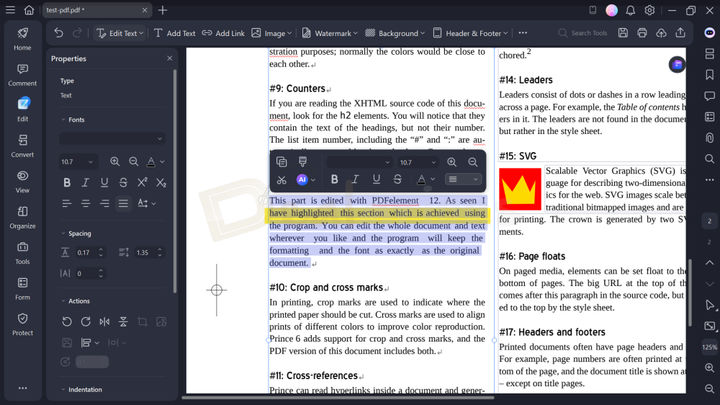
Editing text and document elements in PDFelement during an independent hands-on test. Screenshot source: Dealarious.
Editing Text and Images
Editing existing content is the reason many people start looking for a paid PDF editor.
PDFelement allows you to select text boxes, correct wording, adjust fonts, change spacing, and reposition document elements. Images can also be inserted, resized, rotated, moved, or deleted.
During my testing, basic corrections were straightforward when the PDF already contained properly structured text.
The experience is not identical to editing the original Word document. PDF files are built to preserve layouts, not encourage unlimited rewriting.
Small corrections usually work well:
- Fixing a name, date, or price
- Replacing a short paragraph
- Moving an image
- Adding a missing link
- Correcting formatting
- Removing an unnecessary element
Large rewrites can still disturb line breaks, spacing, and page layouts. That is a limitation of the format, not something PDFelement can completely solve.
If the original editable document is available, editing that file and exporting a new PDF is still the cleaner option.
But when the PDF is the only file you have, PDFelement provides a practical editing workflow.
OCR for Scanned Documents
OCR—optical character recognition—converts text inside a scan or photograph into searchable or editable content.
This is one of the clearest reasons to consider paying for a desktop PDF editor.
Without OCR, a scanned contract or receipt is essentially a picture. You can view it, but you cannot properly search, select, or edit its text.
PDFelement can process a scanned document and create either:
- A searchable PDF that keeps the original appearance
- An editable document where recognized text can be modified
In my testing, OCR worked best on clean scans with sharp text, straight pages, and good contrast.
A clean scan gives OCR the best chance of preserving text, paragraphs, and the original page layout.
Results become less predictable when the source contains:
- Shadows
- Blurred text
- Handwriting
- Crooked pages
- Complicated tables
- Unusual fonts
- Low-resolution photographs
An independent hands-on test also used a PDF created from a phone-camera image. PDFelement recognized much of the text, but the layout and visual quality were less consistent than they were with the clean scan.
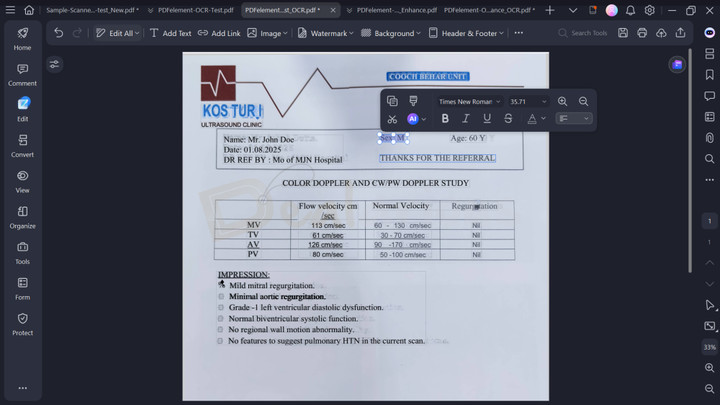
OCR results became less consistent when the source came from a lower-quality phone photo. Screenshot source: Dealarious.
OCR should therefore be treated as a strong starting point, not unquestionable truth.
Important names, numbers, addresses, totals, and contract terms should still be checked manually.
PDF Conversion
PDFelement can convert PDF files into formats including:
- Microsoft Word
- Excel
- PowerPoint
- Images
- Text
- HTML
- EPUB
- PDF/A
The conversion tools are easy to access, but the result depends heavily on the original document.
A simple report with headings and paragraphs will usually convert more cleanly than a brochure containing columns, floating images, charts, and unusual fonts.
Tables are especially unpredictable. Even when the content is recovered, the formatting may need repair.
The practical question is not whether a conversion is pixel-perfect. It is whether the conversion saves more time than manually rebuilding the document.
For ordinary reports, invoices, forms, and text-heavy PDFs, it often does.
Organizing, Combining, and Splitting PDFs
PDFelement also handles routine page-management tasks:
- Combining multiple files into one PDF
- Extracting selected pages
- Deleting unnecessary pages
- Rotating pages
- Reordering pages
- Splitting a large document
- Cropping page boundaries
- Adding page numbers
- Applying headers and footers
These tools are not exciting, but they are often the functions that justify keeping a PDF editor installed.
Combining an invoice, agreement, and supporting document into one clean file is more useful than another AI button promising to revolutionize productivity.
The trial version limits some multi-file operations, so users who regularly assemble document packages will encounter the paid boundary fairly quickly.
Forms, Signatures, and Annotations
PDFelement supports highlighting, underlining, comments, stamps, drawing tools, and text callouts.
It can also:
- Fill existing PDF forms
- Add saved signatures
- Create form fields
- Add checkboxes and dropdown menus
- Recognize some existing form areas
- Protect completed documents
- Request electronic signatures
For simply signing one document, paying for a full PDF editor is unnecessary. Browsers, Preview, and free signing tools can often handle that task.
PDFelement becomes more useful when you repeatedly prepare forms for other people or need to edit the document before signing it.
Compression
PDF compression is useful when a document exceeds an email attachment limit or a website’s upload restriction.
PDFelement offers different compression levels, allowing you to balance file size and visual quality.
Text-heavy PDFs can often be reduced without an obvious quality loss. Image-heavy documents require more care because aggressive compression can make screenshots, scans, and small text difficult to read.
Always open the compressed file before sending it.
A smaller document is not an upgrade if the recipient needs archaeological equipment to read it.
Compression is listed among the advanced features restricted in the unregistered trial, so it should not be treated as a permanently free tool.
AI Features
PDFelement includes AI-assisted tools for tasks such as:
- Summarizing documents
- Rewriting text
- Translating content
- Explaining selected passages
- Proofreading
- Asking questions about a PDF
- Extracting information
These features can be convenient for long reports, but they should not be the main reason to buy PDFelement.
AI usage may be controlled through separate quotas or add-ons, and the allowance can vary by plan. The presence of an AI button does not mean unlimited AI use is included forever.
More importantly, legal, financial, medical, and contractual documents still require manual verification.
Use AI to navigate a document faster—not to outsource judgment.
PDFelement Free vs Paid

PDFelement’s free offering is better understood as a trial than a complete free PDF editor.
You can install it and test the workflow, but important restrictions appear when you try to produce finished work.
According to Wondershare’s current trial documentation, limitations can include:
- Watermarks after editing or commenting
- Limited PDF conversion
- OCR limited to a small number of pages
- Limits on combining files
- Restricted batch processing
- Locked compression and advanced form features
- Limited AI usage
- Restricted premium templates
Wondershare’s documentation currently contains slightly different conversion limits across some pages. The consistent point is that trial conversions are limited and paid exports remove those limits.
Check the official trial comparison before relying on a particular allowance.
| Feature | Free Trial | Paid Version |
|---|---|---|
| Open and read PDFs | Yes | Yes |
| Basic testing and navigation | Yes | Yes |
| Save edited files without trial watermark | No | Yes |
| Unlimited document conversion | No | Yes |
| Unlimited OCR | No | Yes |
| Full file combining | Limited | Yes |
| Compression | Restricted | Yes |
| Batch processing | Limited | Yes |
| Advanced forms | Restricted | Yes |
| AI tools | Limited quota | Depends on the plan |
| Suitable for finished professional work | Usually no | Yes |
The free trial is enough to answer one question:
Does PDFelement’s workflow suit me?
It is generally not enough to become your permanent production version.
PDFelement Pricing
PDFelement pricing is more confusing than it should be because the official store can display several plans, platform bundles, and temporary discounts at the same time.
At the time of this review, Wondershare’s US Windows pricing page displayed options including:
- A quarterly subscription
- An automatically renewing yearly subscription
- Manually renewed promotional plans
- A two-year plan
- A perpetual license for the current major version
- Cross-platform bundles
Displayed prices can change according to promotion, platform, account status, and region.
Check the final checkout page before purchasing rather than treating a large crossed-out discount as a permanent law of nature.
View Current PDFelement Pricing
A perpetual license does not necessarily include every future major version.
Wondershare states that its perpetual option provides indefinite access to the purchased major release—currently PDFelement 12—and its minor updates. A future major upgrade may require another payment.
That distinction matters.
“Perpetual” means you can continue using the version you bought. It does not automatically mean every PDFelement release for the rest of recorded history.
The Purchase Math
A PDF editor should pay for itself by removing recurring document friction.
Suppose PDFelement saves 15 minutes each time you:
- Correct an invoice
- Convert a client document
- Make a scan searchable
- Combine several files
- Prepare a form
- Compress a submission
- Remove or redact sensitive information
If you complete four of those tasks per month, that is approximately one hour saved each month.
For someone using PDFs for paid work, administration, or study, the cost can be reasonable.
If you edit one PDF every three months, the calculation changes.
You may be paying for an impressive toolbox that spends most of its life observing your desktop.
What PDFelement Does Well
Approachable interface
The main editing tools are easier to find than they are in many professional document applications.
Strong everyday editing
PDFelement handles corrections, image placement, annotations, and page organization without requiring specialist training.
Useful OCR
Clean scanned documents can be converted into searchable or editable files with relatively little effort.
Broad format conversion
Moving content between PDF, Word, Excel, PowerPoint, and image formats can save substantial time.
Perpetual-license option
Users who dislike permanent subscriptions have an alternative, although major-version upgrades must be considered.
Wide feature coverage
Editing, OCR, forms, conversion, signing, page organization, protection, and compression are available in one application.
What PDFelement Could Do Better
The free version is heavily restricted
The trial is suitable for evaluation, but watermarked exports prevent it from being a dependable free editor.
Pricing is unnecessarily confusing
Multiple discounts, plan types, renewal conditions, and platform combinations make the buying decision harder than the software itself.
AI limits need careful checking
AI features may use separate quotas and should not be assumed to be unlimited.
Complex layouts can still break
PDF editing and conversion work best on clean, structured documents. Complicated layouts often require manual repair.
Upgrade prompts can create friction
Some independent users report frustration with promotional messages, add-ons, and major-version upgrade prompts.
A perpetual license is version-specific
You retain the purchased version, but future major releases may cost extra.
What Real Users Commonly Mention
Public discussions are mixed, which is normal for a mature document application.
Positive comments frequently mention:
- An interface that feels easier than Acrobat
- Useful editing and OCR features
- Lower entry pricing during promotions
- A wide range of document tools
- The availability of a perpetual license
Recurring complaints include:
- Resource usage on some systems
- Pop-ups and upgrade prompts
- Confusion about perpetual-version upgrades
- Trial watermarks
- AI features requiring separate allowances
- Difficulty understanding which plan includes which platforms
One Reddit user described PDFelement as attractive and feature-rich but found it heavier on system resources than expected.
Another user criticized the way an older perpetual installation handled a major-version upgrade prompt.
These are individual experiences rather than universal outcomes, but they are worth considering before purchasing.
You can read the original PDFelement comparison discussion and the perpetual-license complaint.
The practical response is simple:
Test the exact version on your own computer, confirm the plan terms, and keep the original installer and license information.
PDFelement vs Adobe Acrobat
Adobe Acrobat remains the more established choice for enterprise workflows, advanced collaboration, complex forms, compliance processes, and organizations already built around Adobe services.
PDFelement is easier to justify for individuals and smaller teams that need serious editing, OCR, and conversion without committing to Acrobat’s broader ecosystem.
Choose PDFelement if:
- You want a more approachable interface
- You need common professional PDF tools
- You prefer having a perpetual-license option
- You do not need Adobe-centered enterprise workflows
Choose Acrobat if:
- Your company already uses Adobe services
- You need advanced compliance or collaboration features
- Clients require Acrobat-specific processes
- Maximum compatibility matters more than price
PDFelement vs Smallpdf
Smallpdf is better suited to quick browser-based jobs:
- Converting one file
- Compressing a PDF
- Combining documents
- Signing an occasional form
- Working without installing desktop software
PDFelement is the stronger choice for recurring desktop work:
- Editing existing text and images
- Running OCR
- Creating forms
- Processing multiple files
- Working with sensitive documents locally
- Managing more complicated PDF projects
Smallpdf is convenient. PDFelement is closer to a complete document workstation.
If your needs stop at “compress this file before the upload form rejects me again,” a browser tool may be enough.
Is PDFelement Safe?
PDFelement is established commercial software from Wondershare, but document safety depends on how you use it.
For ordinary local editing, the desktop application allows files to remain on your device. Cloud sharing, AI analysis, electronic signatures, and synchronization may involve online processing.
Before uploading sensitive documents:
- Review the current privacy terms
- Check whether the feature works locally or in the cloud
- Remove unnecessary personal information
- Avoid sending confidential documents to AI features without authorization
- Confirm your organization’s document policy
- Keep an untouched original copy
A legitimate product is not a substitute for sensible document handling.
Who Should Upgrade, Stay Free, or Skip?
Upgrade
Upgrade to PDFelement if:
- You edit PDFs every week
- You regularly convert PDFs into editable formats
- You work with scanned documents and need OCR
- You prepare forms, contracts, reports, or invoices
- Trial watermarks prevent you from completing real work
- You want a desktop alternative to Adobe Acrobat
- A perpetual license fits your workflow
- The software saves measurable administrative time
Stay Free
Stay with free tools if:
- You mainly read PDFs
- You only add highlights or comments
- You sign documents occasionally
- Your browser or macOS Preview already handles the task
- You only combine or compress files occasionally
- You are still testing whether you need advanced editing
- Your employer or school provides another PDF editor
Skip
Skip PDFelement if:
- You need a permanently free full PDF editor
- You rarely modify PDF content
- Your organization already provides Acrobat
- You need Linux support
- You dislike plan variations and upgrade prompts
- You expect every AI feature to be included without limits
- You require specialist enterprise or compliance workflows
Final Verdict
PDFelement is worth paying for when PDFs are part of your regular work rather than an occasional inconvenience.
Its biggest strengths are accessibility and coverage. Editing, OCR, conversion, forms, signing, compression, and page management are organized inside one relatively approachable desktop application.
The free trial does its job by letting you test the workflow. It does not function as a generous long-term free plan. Watermarks and processing limits appear exactly where finished work begins.
That makes the decision fairly clear.
Upgrade if PDFelement repeatedly saves time on documents that matter.
Stay Free if reading, signing, and basic organization already cover your needs.
Skip it if you are buying an entire document workstation to solve one PDF emergency every few months.
Download PDFelement and Check Current Pricing
Next Up
CapCut vs Filmora: Which Beginner Video Editor Is Worth Paying For?
Before the full comparison, read our Filmora Review 2026 and CapCut Pro Review 2026.
Upgrade smarter. Skip louder.